
You can create PDF score sheets (field cards) and printouts under the Details of the competition by clicking on the Generate PDF button or in the start list view.
This guide covers the following:
- Creating PDF score sheets under Details
- Creating PDF score sheets per event
- Adding heights to vertical jump event score sheets
Creating PDF Score Sheets under Details
To generate a PDF file under Details, click the Generate PDF button on the left-hand side.

This opens the PDF generation dialogue. Select Score sheets as the Type. You can then configure the following options:
- Scope - print all events, only field events, or only track events.
- Order - sort events by name or start time.
- Language - select the language for the generated file
- Units - metric or imperial (ft-in).
- Ignore visibility settings - allows you to include events that are hidden using the Event visibility feature. For more information, see the Event visibility guide.
- Date - print events held on a specific day.
- Age group - print events for a specific age group.
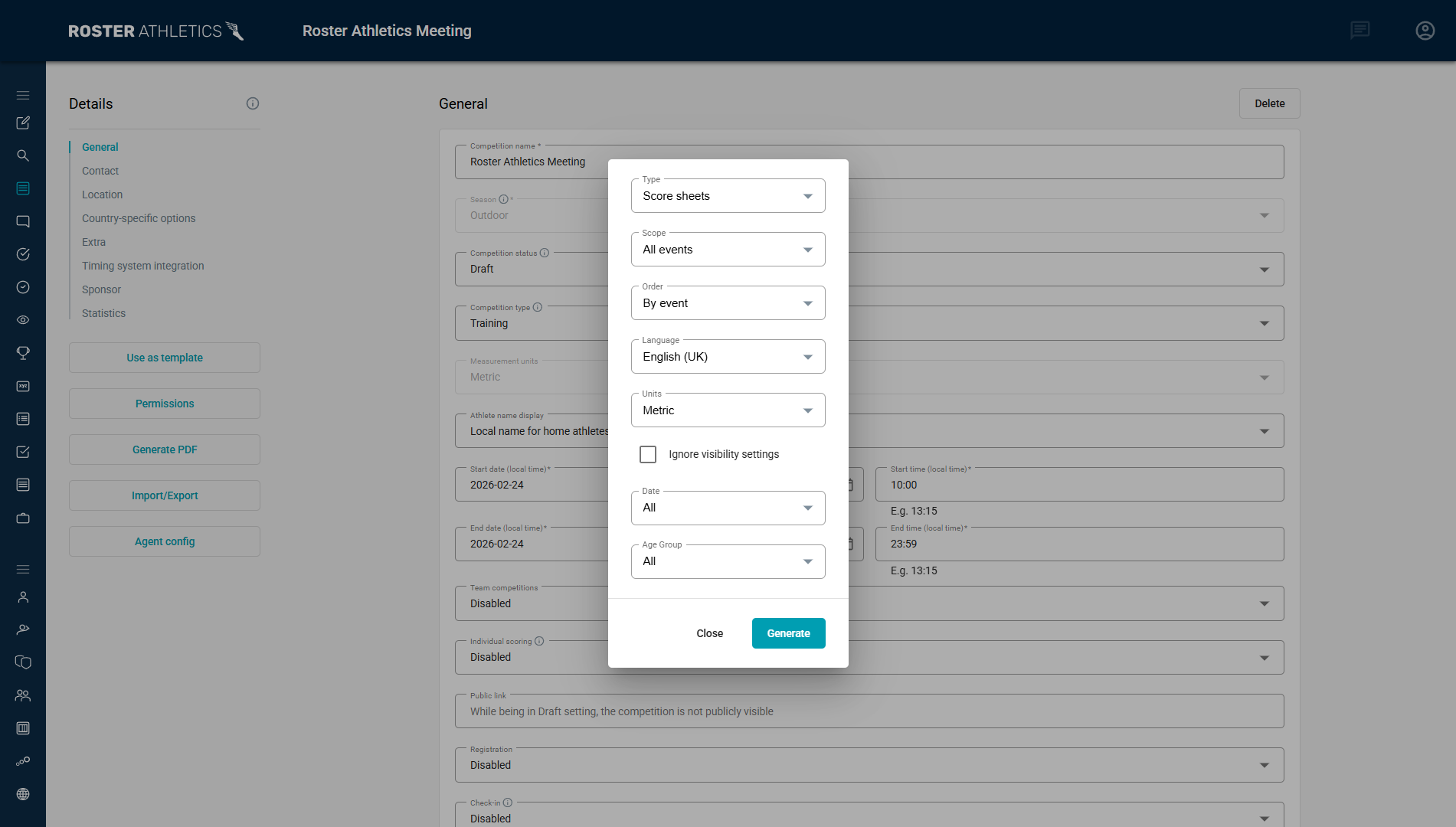
When your setup is ready, click Generate. The browser’s print dialogue will open, where you can print or save the file. Depending on your browser, additional options may be available:
- Select Headers and footers to include generation timestamps, page numbers and the competition name.
- Adjust Scale to use a smaller or larger font.
- Select Save as PDF to save the file to your device.

Creating PDF score sheets per event
To generate a PDF score sheet file from the Start lists view, click the options icon in the upper-right corner of the page and select Generate PDF.
This opens the same dialogue described above, with additional options to generate a file for the current group, the current stage, or the entire event.

Select Score sheets as the Type, and configure the same options as described in the previous section.

Adding heights to vertical jump event score sheets
To add heights to the header of a high jump or pole vault score sheet, enter them in the Results view of the event in Roster web admin or the Meet Mgmt app. For more information, see the High Jump, Pole Vault and Field Events: High Jump and Pole Vault guides.

Example of the score sheet:
