
Once in your competition, select your high jump or pole vault event to start marking your results. You are now on the Event view.
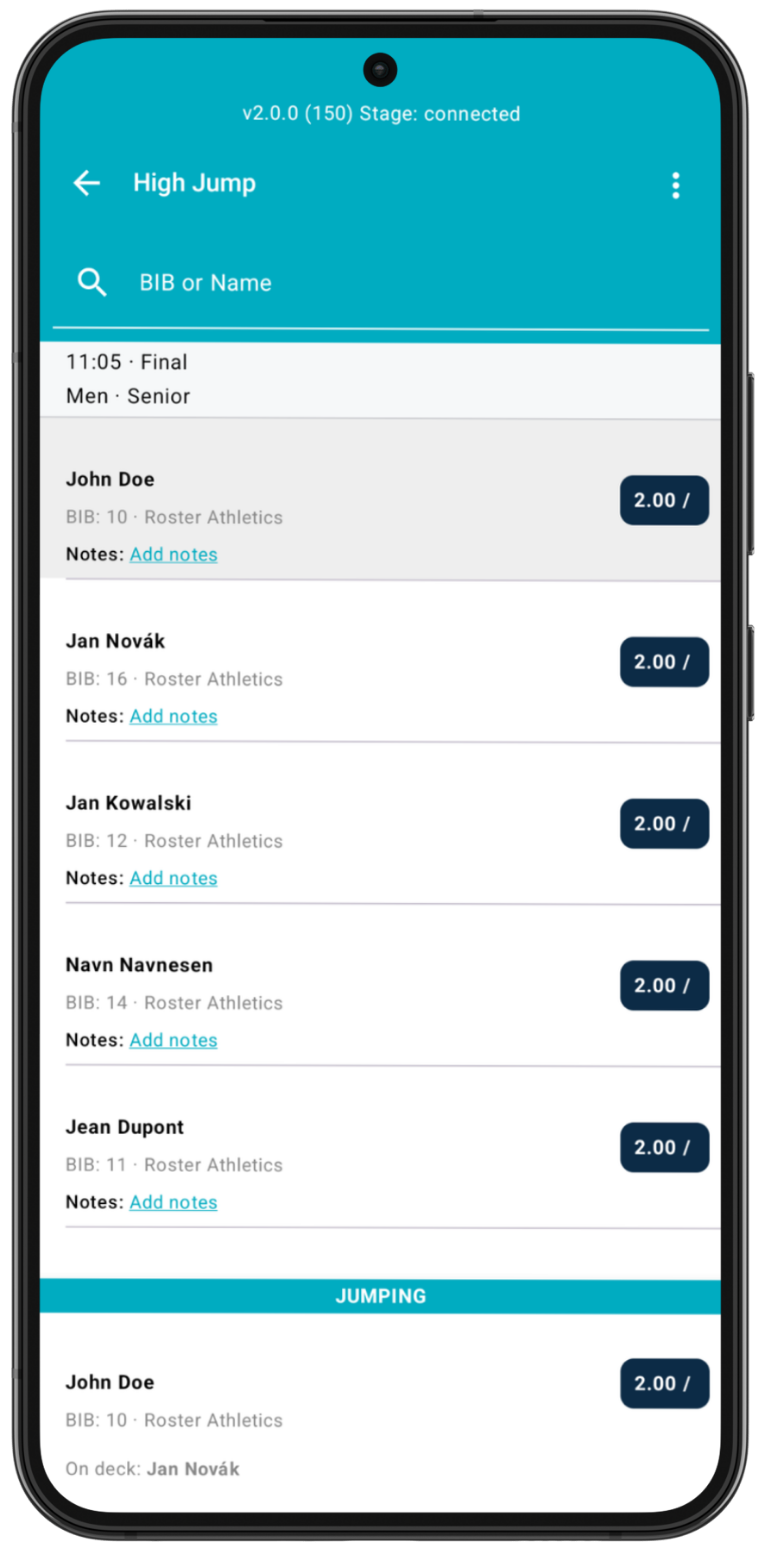
The start list that appears in the app is the one that is set in the Competition Management Platform web admin. Any changes to the start list and start order need to be made in the Roster web admin, which will then automatically propagate to the Meet Mgmt app with an active connection. You can also manually update the start list by swiping down on the screen in the Event view page.
Before entering results, you will first need to set up jump/vault heights for the event and initial starting heights for each athlete.
Please note that the unit format used for the competition, either metric (mm.xx) or imperial (ft-in.xx) is set by the organiser upon creation of the competition.
This guide is divided into a few sections below:
Setting up Event Heights
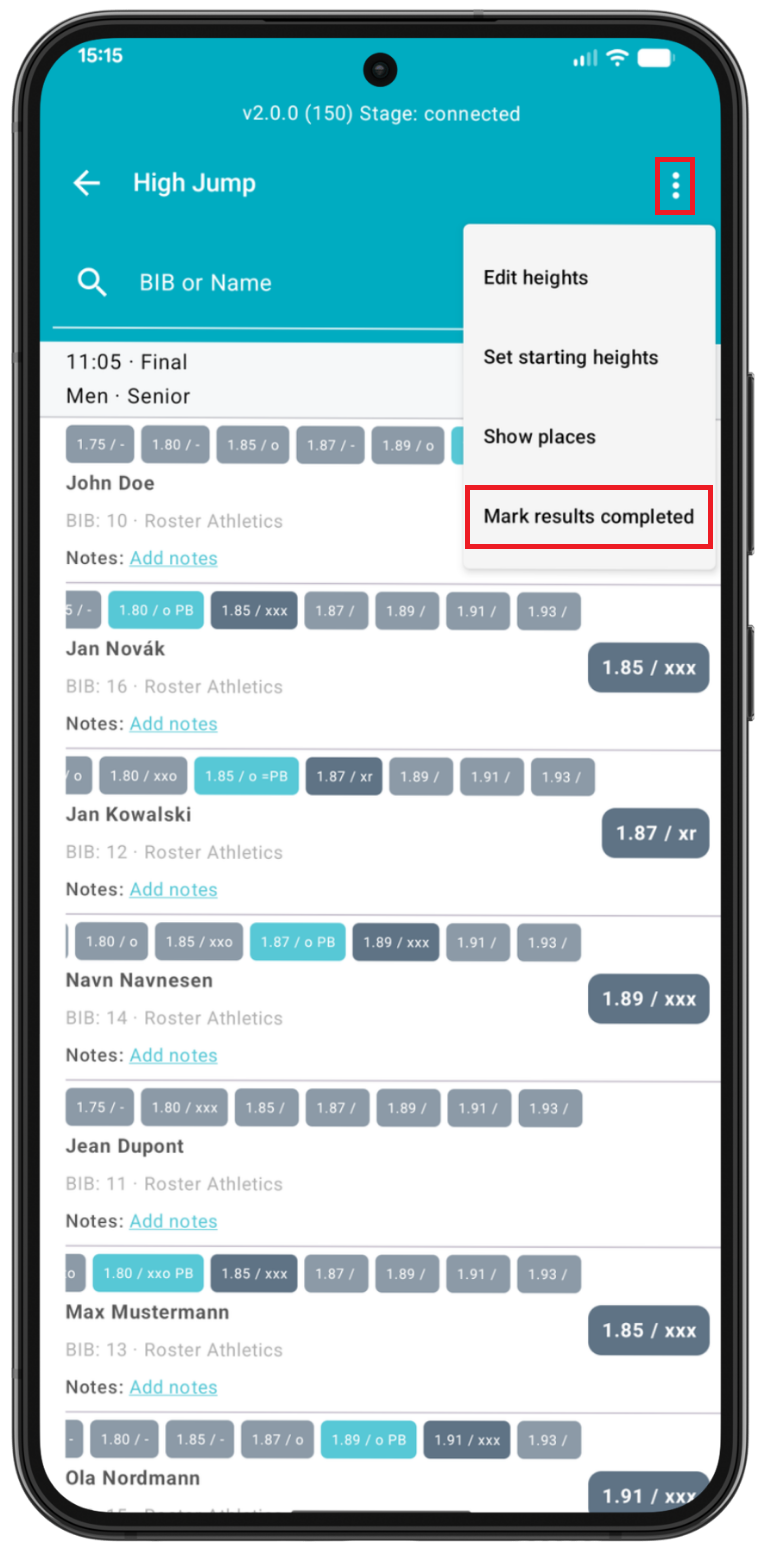
Before the start of the event, set your jump or vault heights. To do this, press the three dots menu option on the upper right side of the screen. You will see an option to Edit heights.
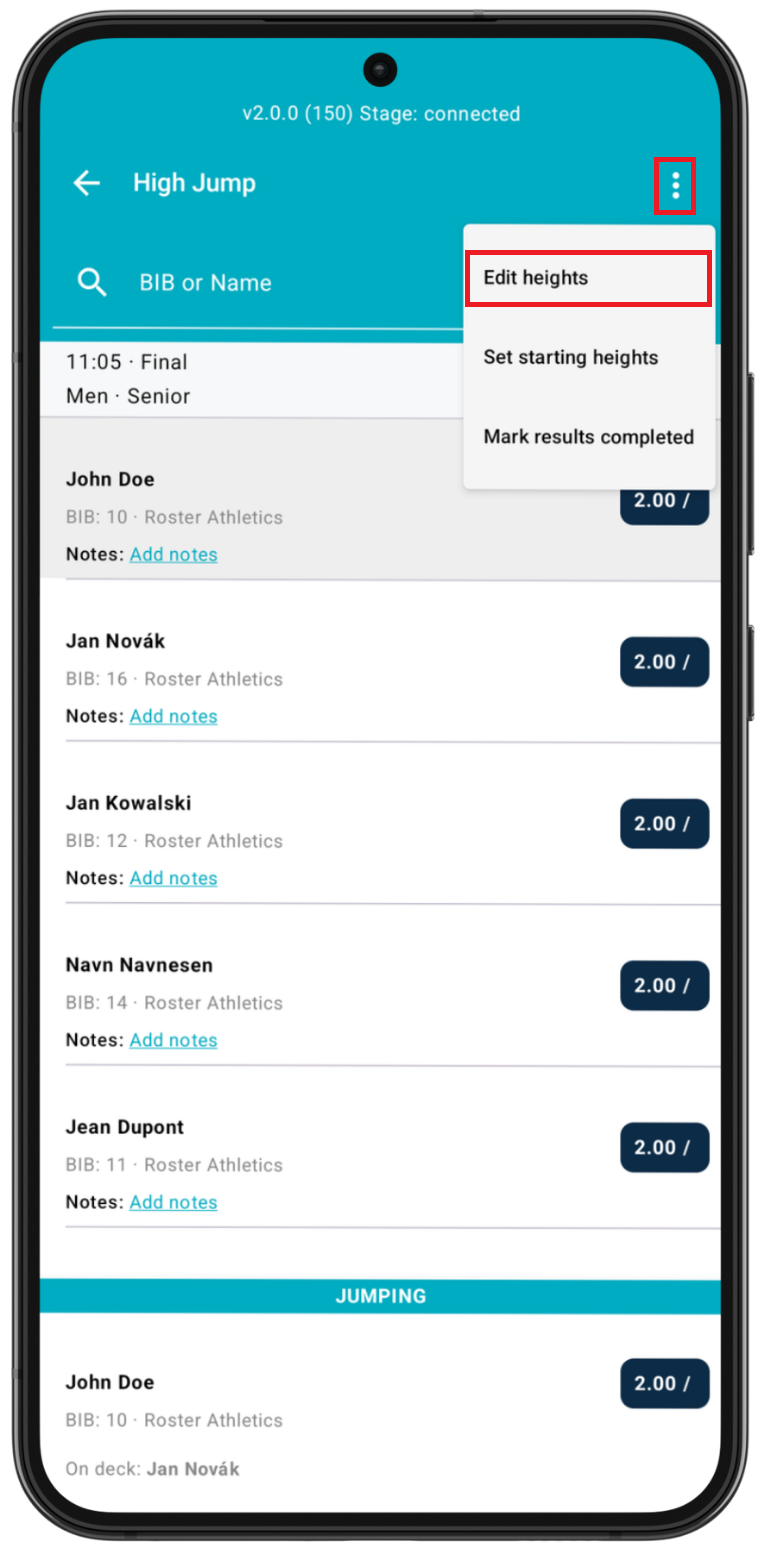
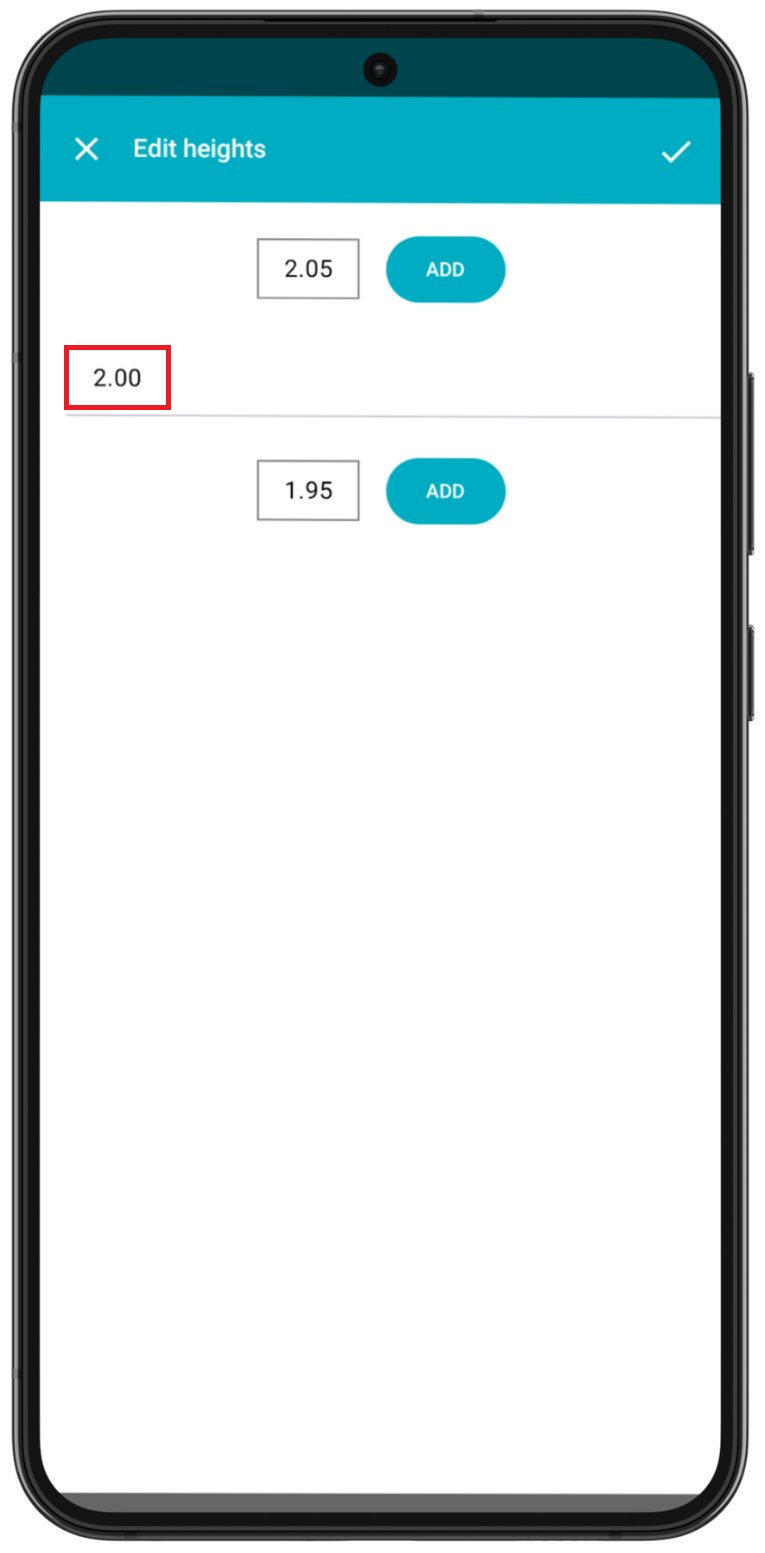
After selecting this option, you will be directed to the Edit heights page.
The event heights are listed on the main screen. When starting, you will see only one height. To edit this default height, click the field with it:
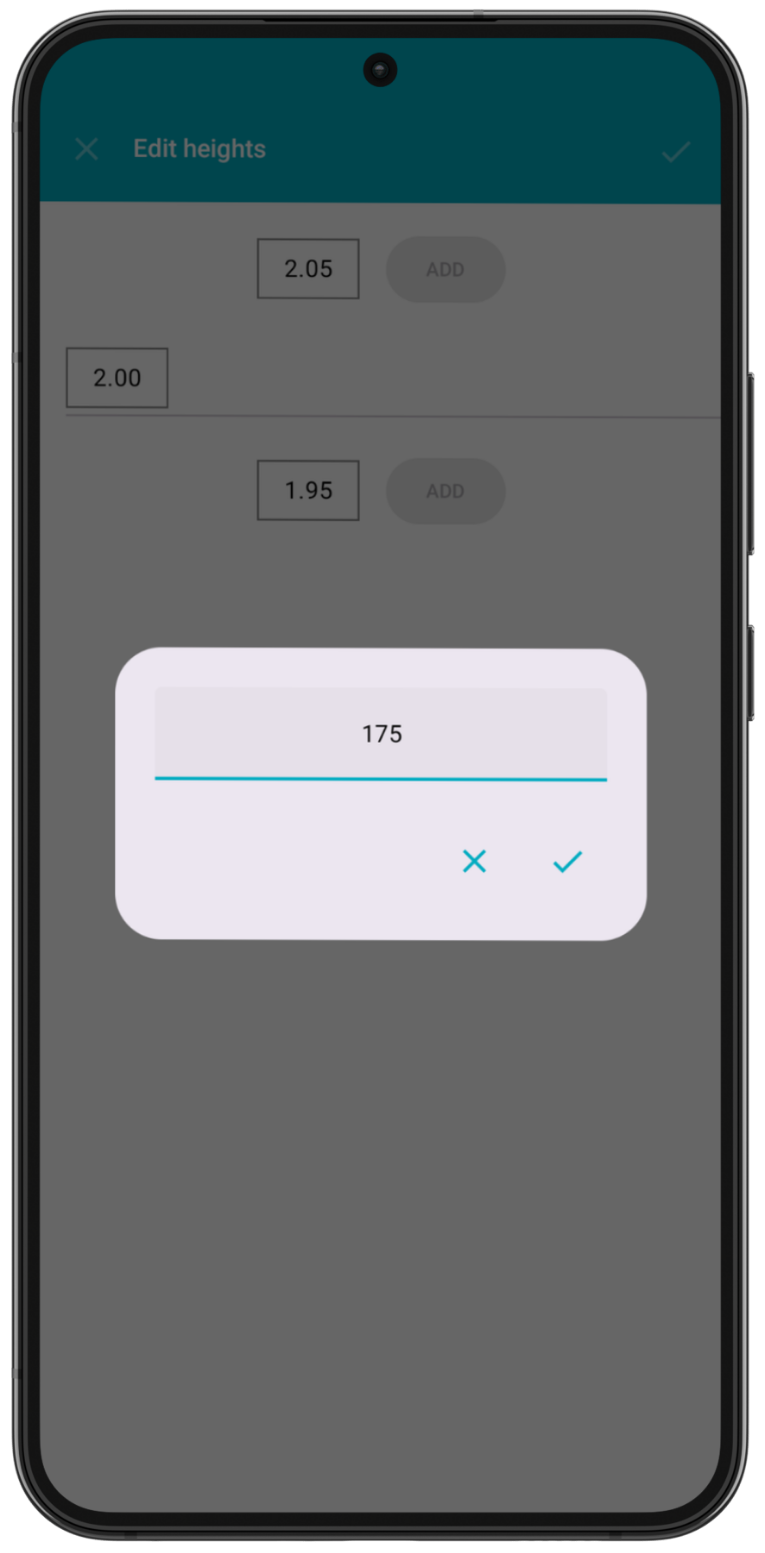
When entering values, you can enter numbers without any punctuation. The values will be entered with the most significant digit first.
When using imperial ft-in units, please remember that two digits are always necessary when entering the inches, e.g. 6-01.50 (for 6-1.50), and must be between 00 and 11. Also note that the two decimal digits must be .00, .25. .50, or .75. If you enter different decimal digits than this in the imperial format, you will not be able to save the result; the save check mark ✔ button will not work.
Once you have edited this height, press the check mark ✔ to save or X to exit without saving.
To add the next height for the event, click the next height value and edit. Once this is set, press ADD to add this height to the event. The default new height is the delta of the previous two heights, but can be set to any appropriate height.
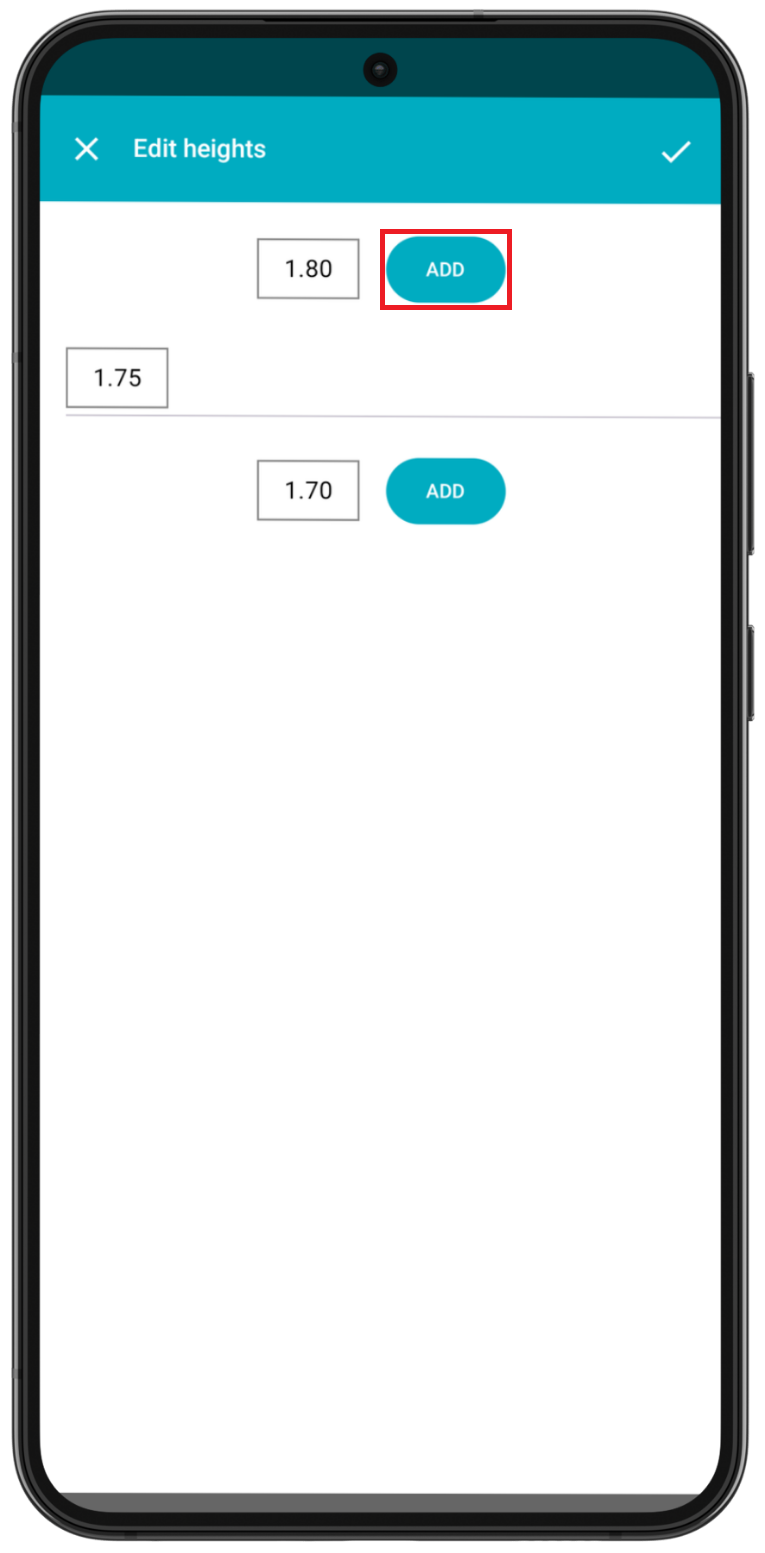
You will now see this height listed in the heights section for the event.
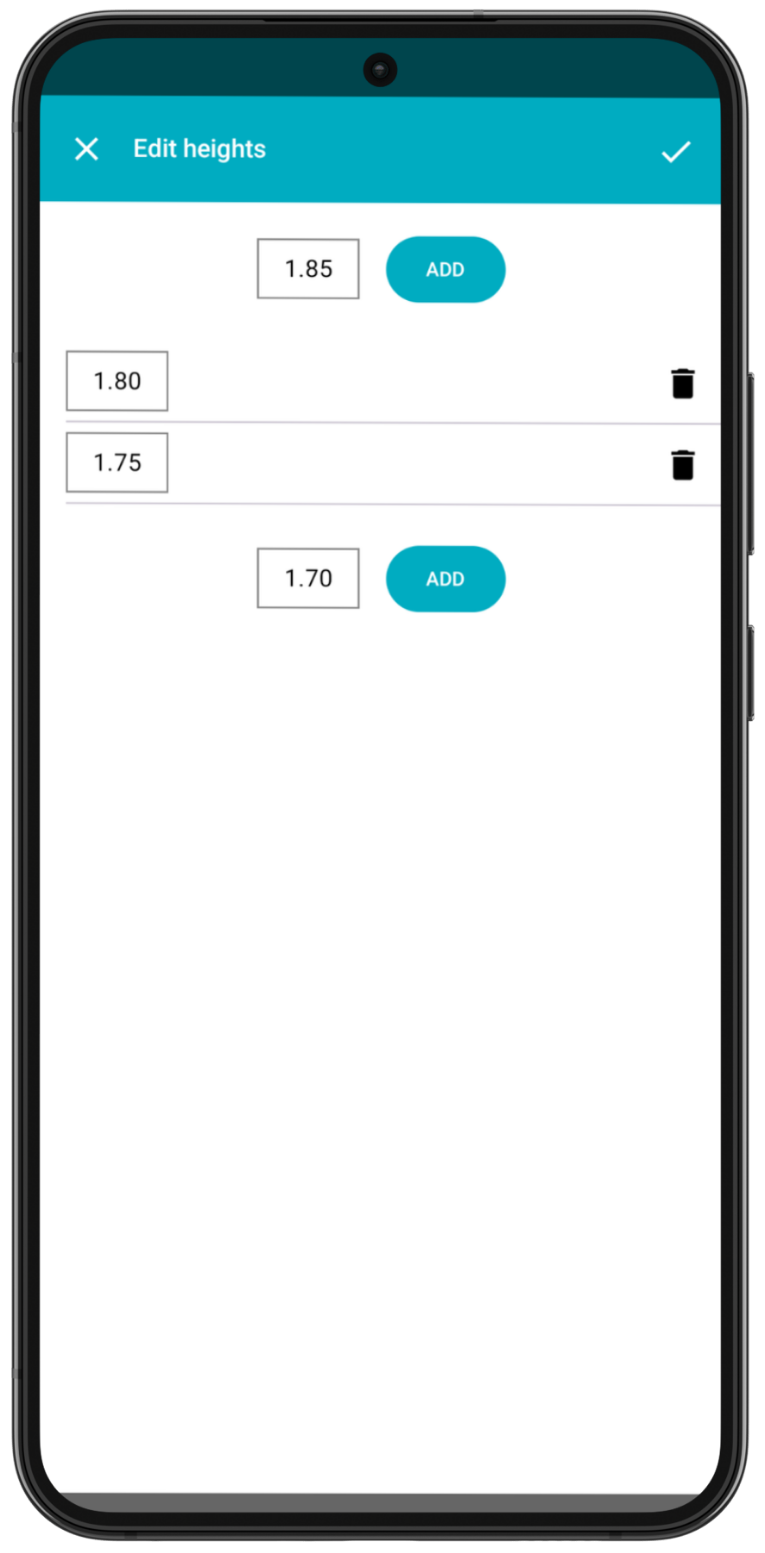
Repeat these steps as necessary for your event.
Please note that the heights can be edited or added at any time. You can also remove the first and last heights. The app will warn you if you try to remove a height at which athletes have attempted.
The heights can also be set or edited through the Roster web admin, where the competition organiser can add all the heights when setting up the event.
Set starting heights
You can set the starting height for each athlete before the event begins. To do this, go to the three-dot menu and select Set starting heights.
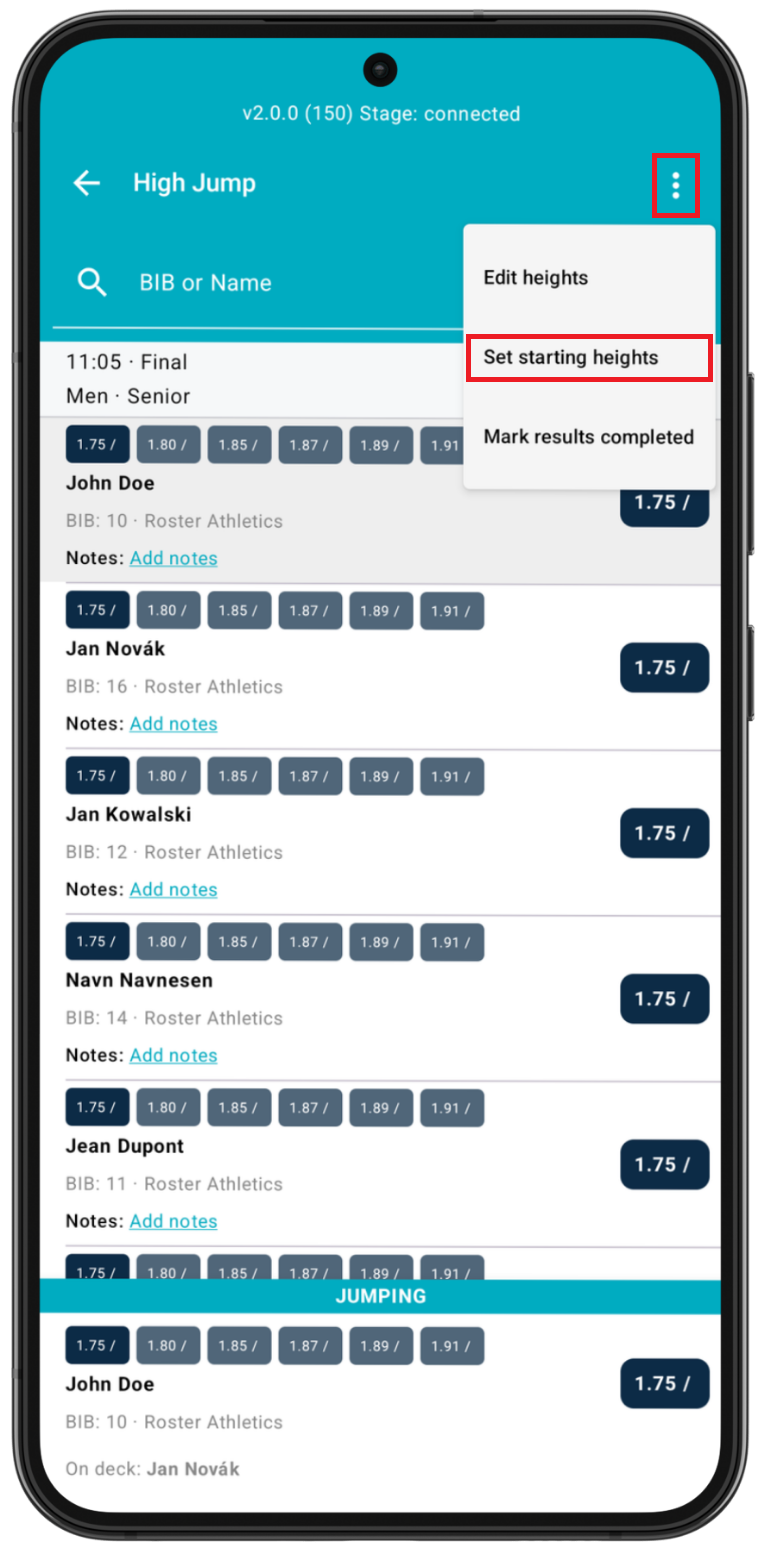
Once on the Set starting heights page, you will see the list of competing athletes. You can also search for the name or bib number of a competing athlete in this event.
Select an athlete and choose their desired starting height from the list of event heights displayed. If you have not previously set the event heights, please follow the instructions above.
Once finished, you will see the selected starting height next to the athlete in the Set starting heights screen. Click the next athlete and repeat the process as needed.
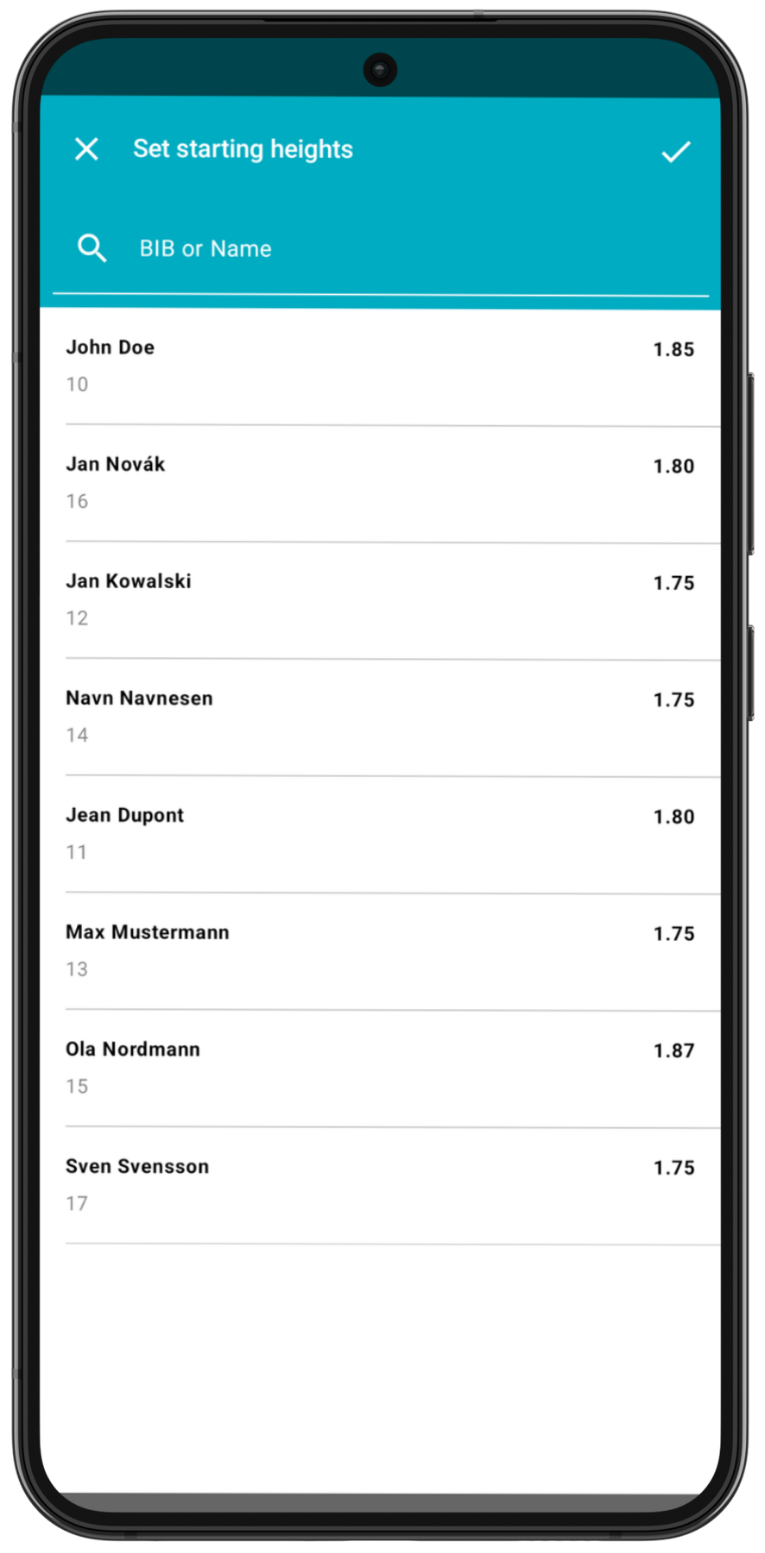
Once you have set all starting heights, press the check mark ✓ to save or ✕ to exit without saving.
Note that setting the start height for athletes is not a requirement, but it saves the effort of marking all skipped attempts for those athletes during the competition.
Entering a Result
You are now ready to enter the results after setting the event heights and the athletes’ initial starting heights.
The current active athlete (jumping) is shown at the bottom of the screen.
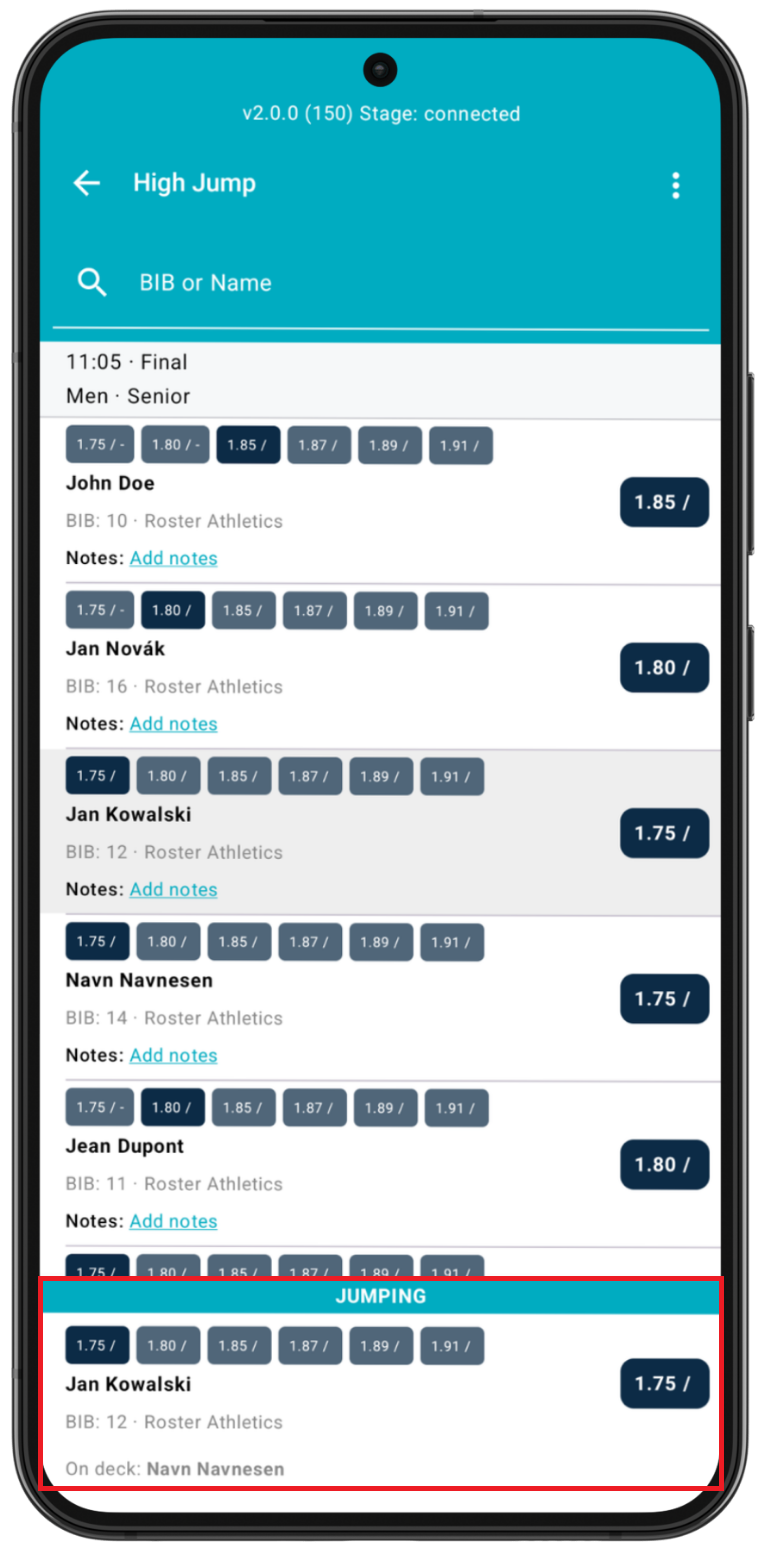
Click this athlete to get to the Enter result page.
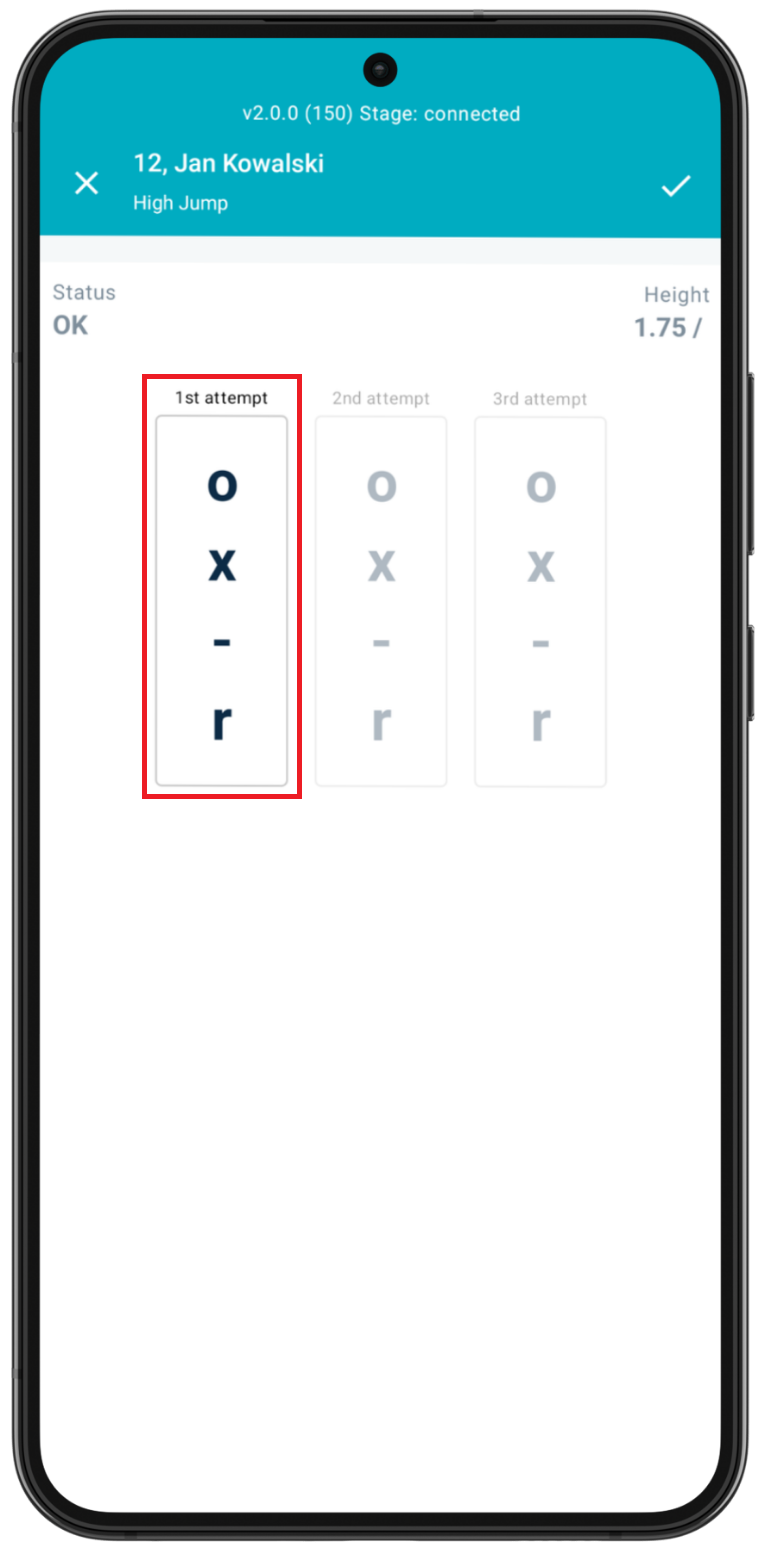
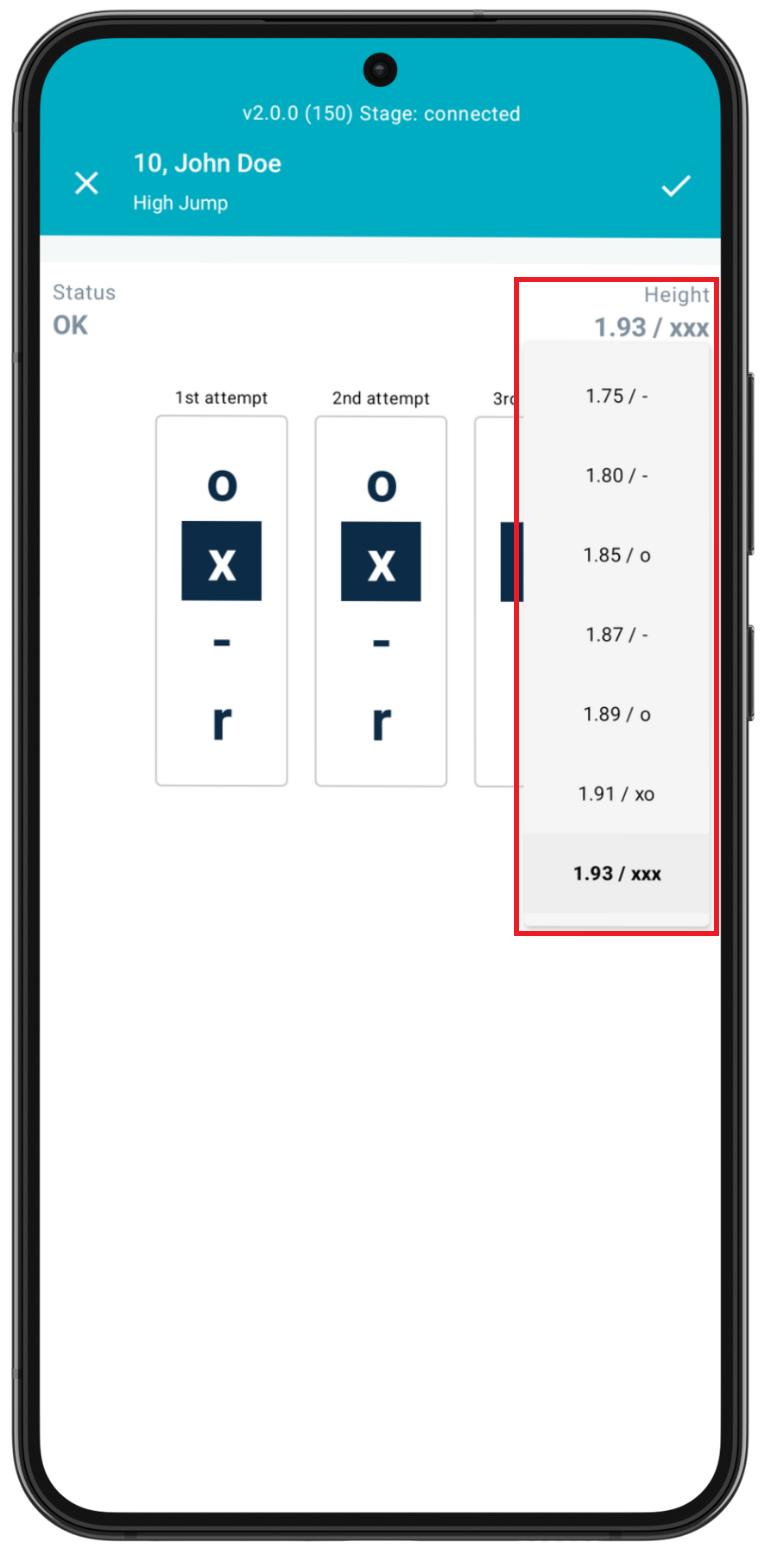
You will see three possible attempts for this particular height. Each attempt can be marked as:
- o ⇒ successful attempt
- x ⇒ missed attempt
- - ⇒ passed attempt (athlete moves to the next height)
- r ⇒ athlete retires from the event
If marked with an o, the athlete moves to the next height and resets any misses. If marked with a x, the athlete stays at this height and goes back in the queue at this height for the next attempt, with the miss recorded (unless three x’s are marked consecutively, indicating that the athlete is now out of the competition). If - is marked, the athlete passes and moves onto the next height, but any missed attempts are kept. If r is marked, indicating that the athlete has retired from the event, then this athlete will no longer appear in the jumping field.
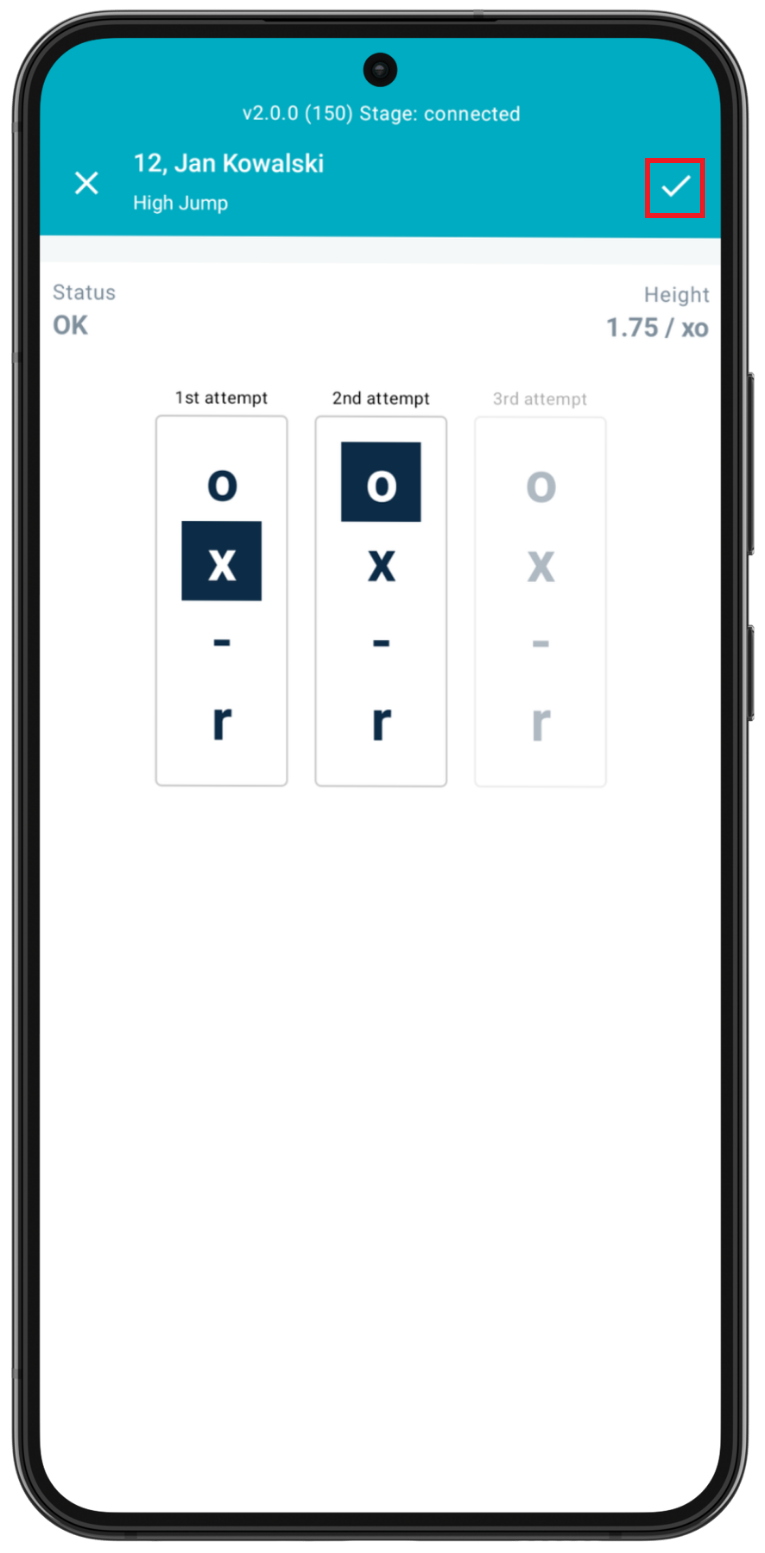
Please ensure that you click the check mark ✓ to save your changes. Place standings are automatically updated in both the Roster consumer app and web admin upon each saved result.
Status
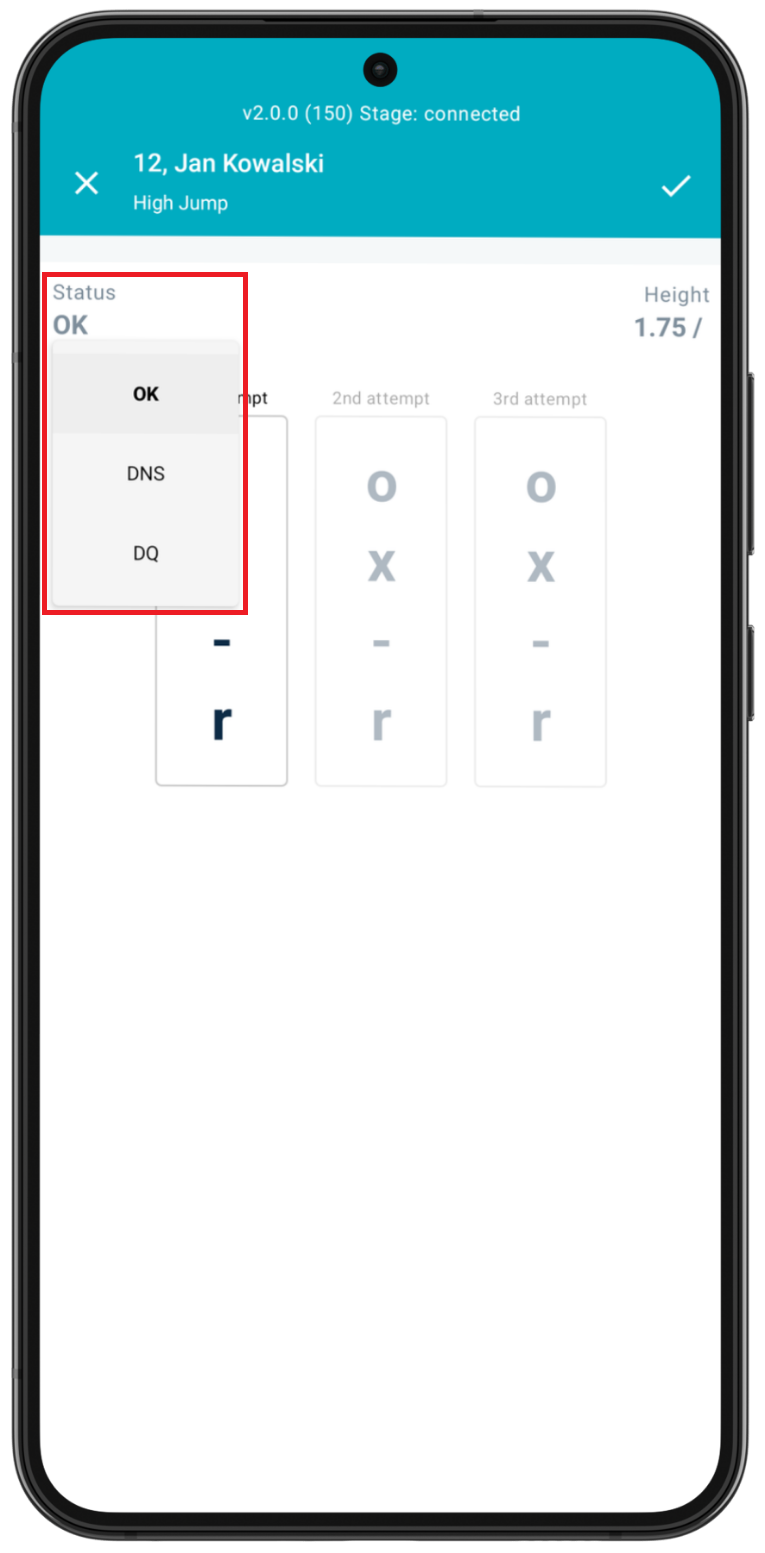
The Status field indicates the current status for the athlete. Upon pressing the Status field, you will see that the athlete’s status can be set to:
- OK (default setting) - athlete is currently competing in the event
- DNS (did not start) - athlete is listed in the event, but does not start and compete in the event
- DQ (disqualification) - athlete is disqualified by an official
- NM (no mark) - athlete competes in the event but does not register a valid result. Note that NM is automatically generated when all attempts are marked failed/invalid.
Height
The Height field indicates the current height for the attempt. Note that pressing the Height field will show all available event heights and the corresponding results. Pressing any of the other heights allows you to enter the results screen for that athlete for the selected height, but it is typically used only to change a specific result.
Navigating the Event view
Now that you understand the basic mechanism of how to enter results, let’s look at the specific options once results are entered.
View place standings in the Meet Mgmt app
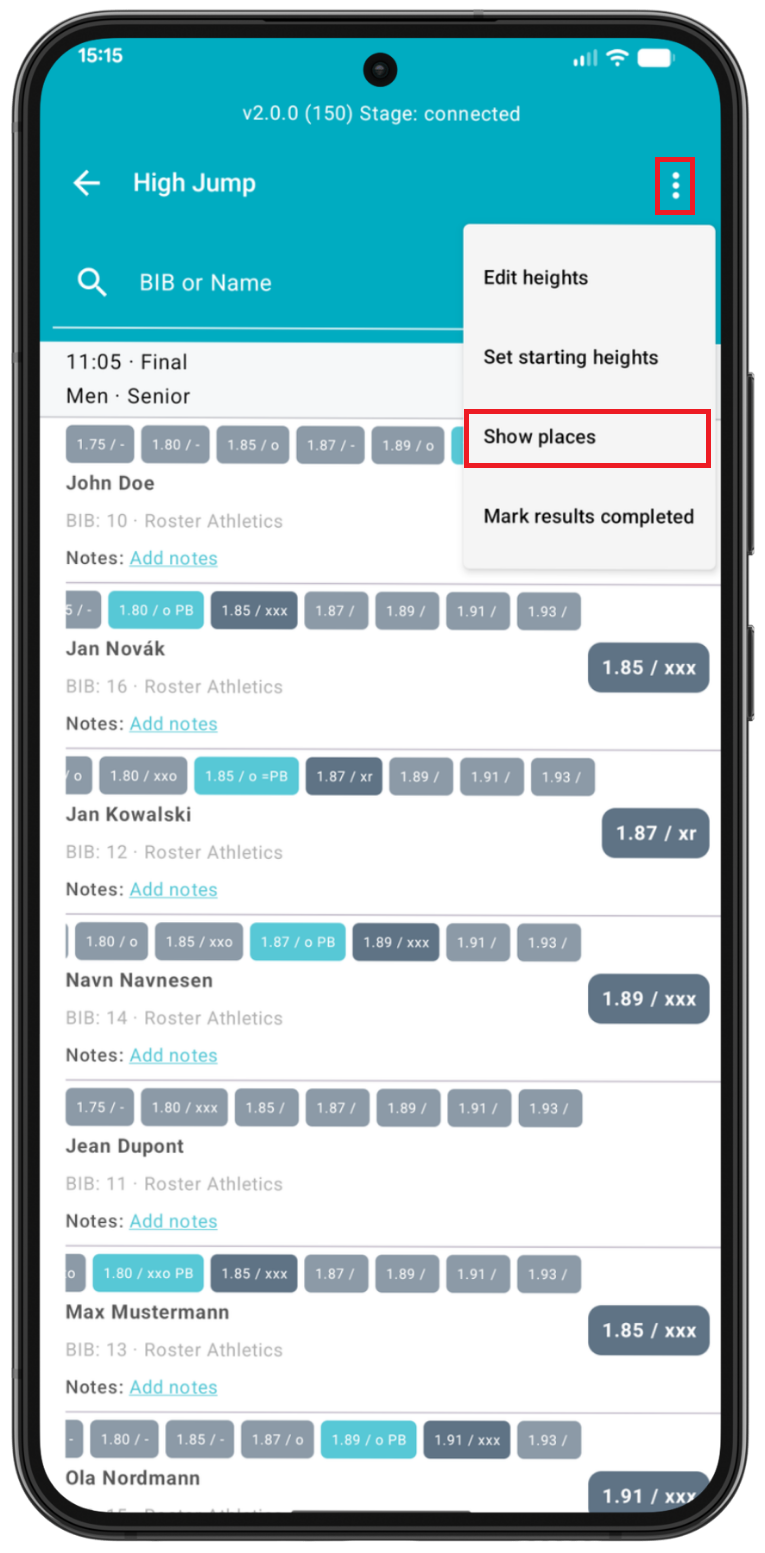
As you enter results, you can view updated place standings during the competition. To do this, press the three dots option on the upper right-hand and select Show places.
You will then see a summary screen with the place standings updated to the current attempt.
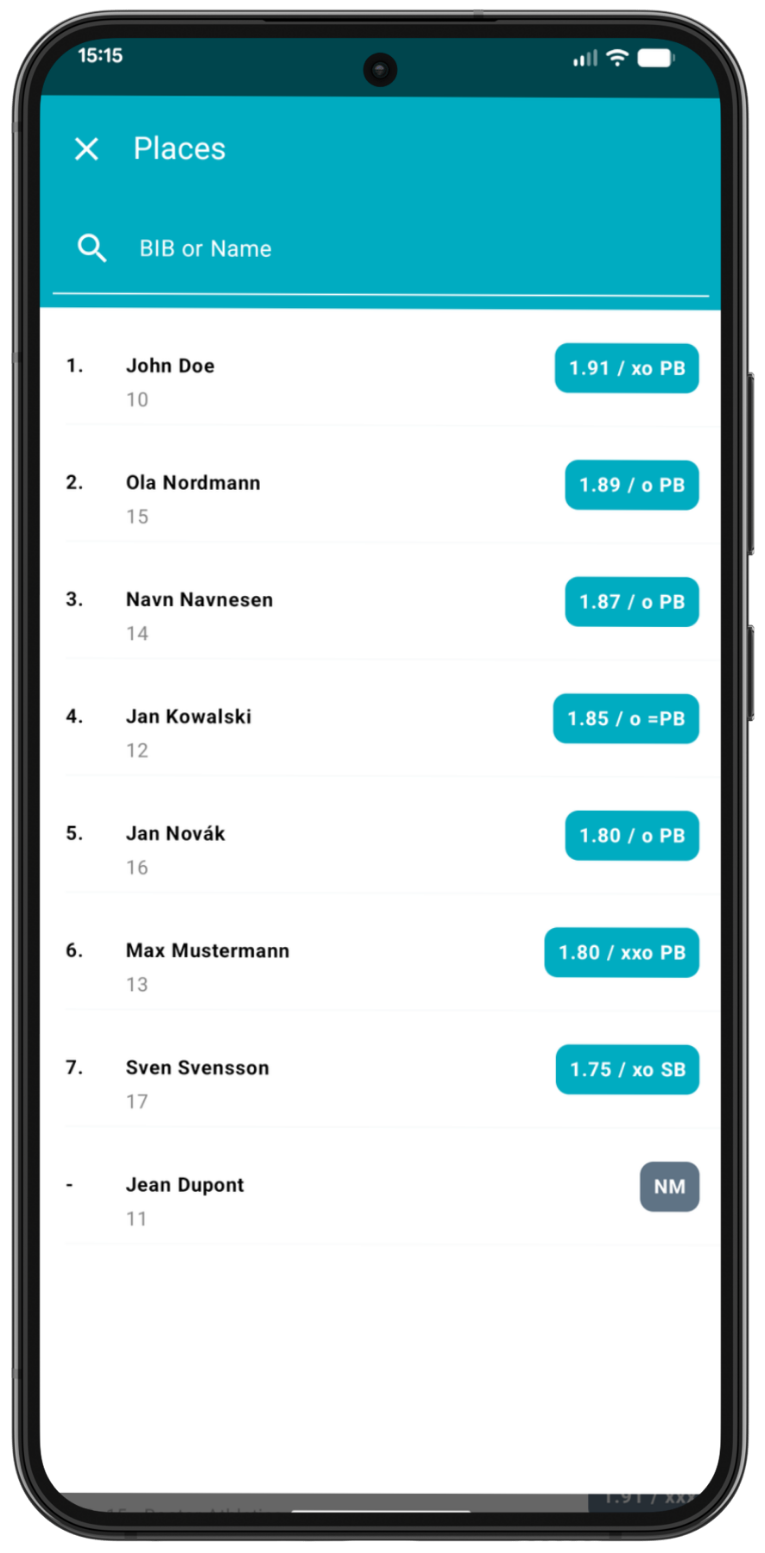
Pressing the check mark button will push an update for all results (both results and places) in this event; however, this is generally not necessary, as each entered result is updated automatically.
Searching by athlete name or bib number
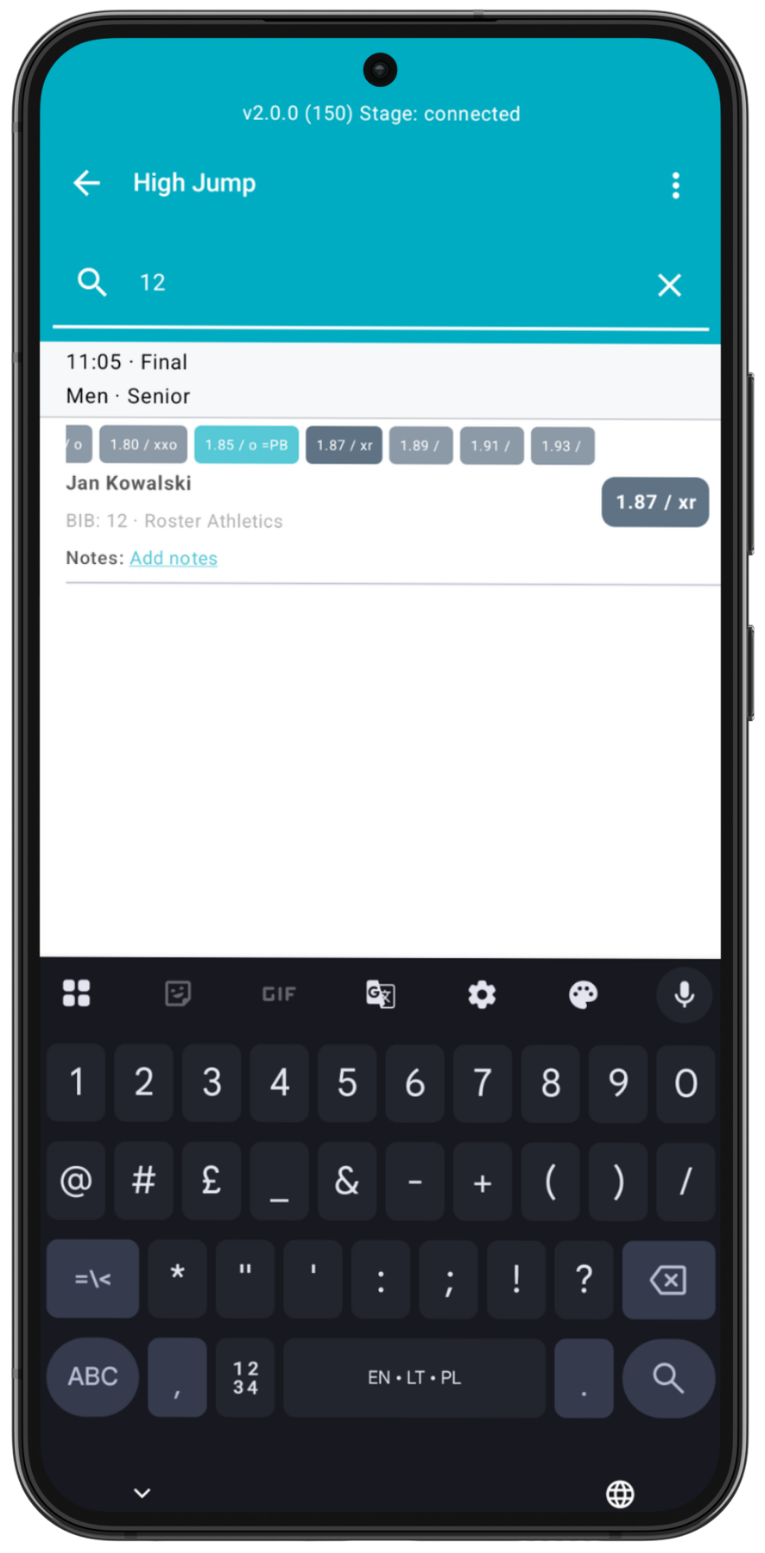
During the event, you may need to search for or update the results for a particular athlete. You can find this athlete through the search window in the Event view by entering the athlete's name (first or last) or their associated bib number.
Editing an attempt
From the Event Summary screen, you can edit any attempt from any athlete competing in the event. Previous round’s attempts can be seen above the name of the athlete on the left-hand side. The current round’s attempt is seen on the right-hand side. Pressing any of these results will place you in the enter result screen for that particular attempt.
Mark results completed
Once you have finished marking all results for the event, you can Mark results completed through the three dots menu option. This will notify the platform and main app that the event is finished and complete. If you have multiple groups in the event, after calculating places and marking results as completed for each group, the summary group will automatically have its place standings updated as well.
Note that results can still be edited, even after completing this step.
Adding notes
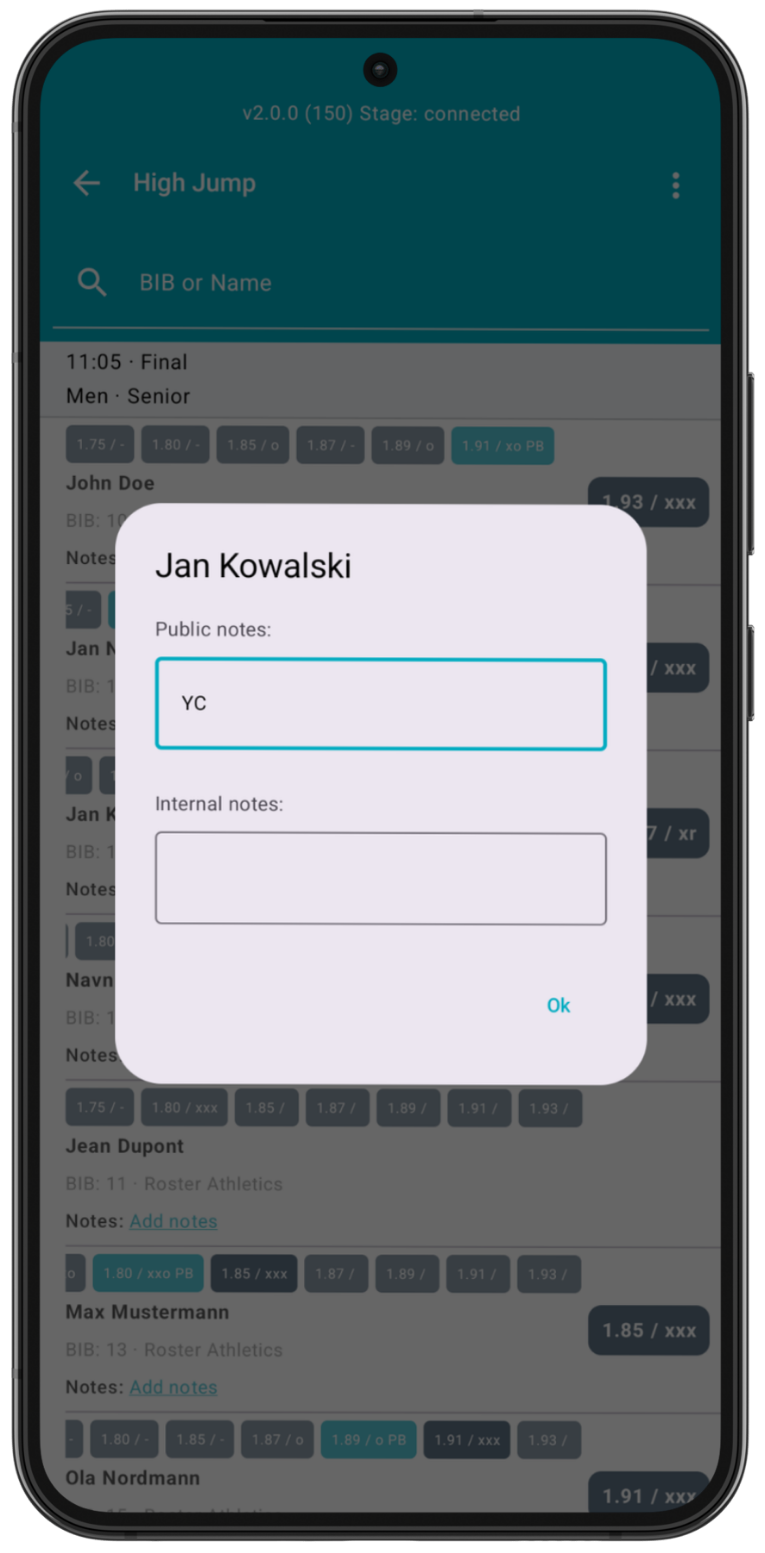
Click Add notes under the athlete's name if you wish to add a text note for this specific athlete.
You can add Public notes, which are visible in the Roster Athletics app, the public website with start lists and results (https://meets.rosterathletics.com/), and CSV and PDF files (start lists, results and scoresheets). You can use this field to add information about Yellow Card (YC), Second Yellow Card (YRC), Red Card (RC) and more.
You can also add Internal notes, which are visible ONLY in the Meet Mgmt app and web admin for other users who have permission to access the competition.
Notes can be as long as needed, but they may be trimmed in some views.