
This guide explains how competition organisers can create and manage club or school profiles in Roster Athletics.
You can add a new club or school to the Roster Athletics database from an athlete, relay, or team profile, or from OVERVIEW → Clubs/schools in the left-hand side menu. Depending on the place, follow these steps:
Step 1: Creating a new club or school
To add a new club or school from an athlete, relay, or team profile, go to the Clubs (Athlete profile) or General (Relay team profile) tab and click Add club/school button, then click Create new.
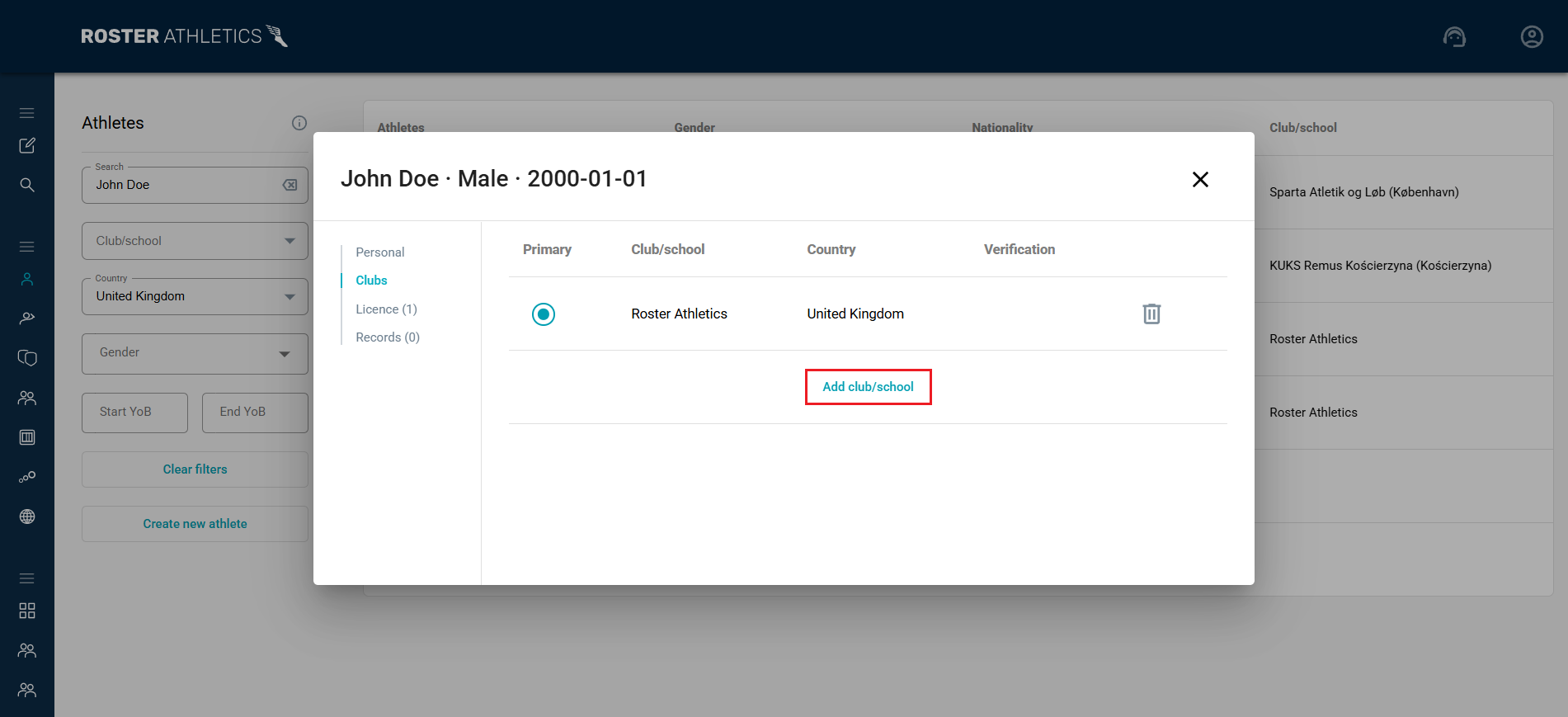
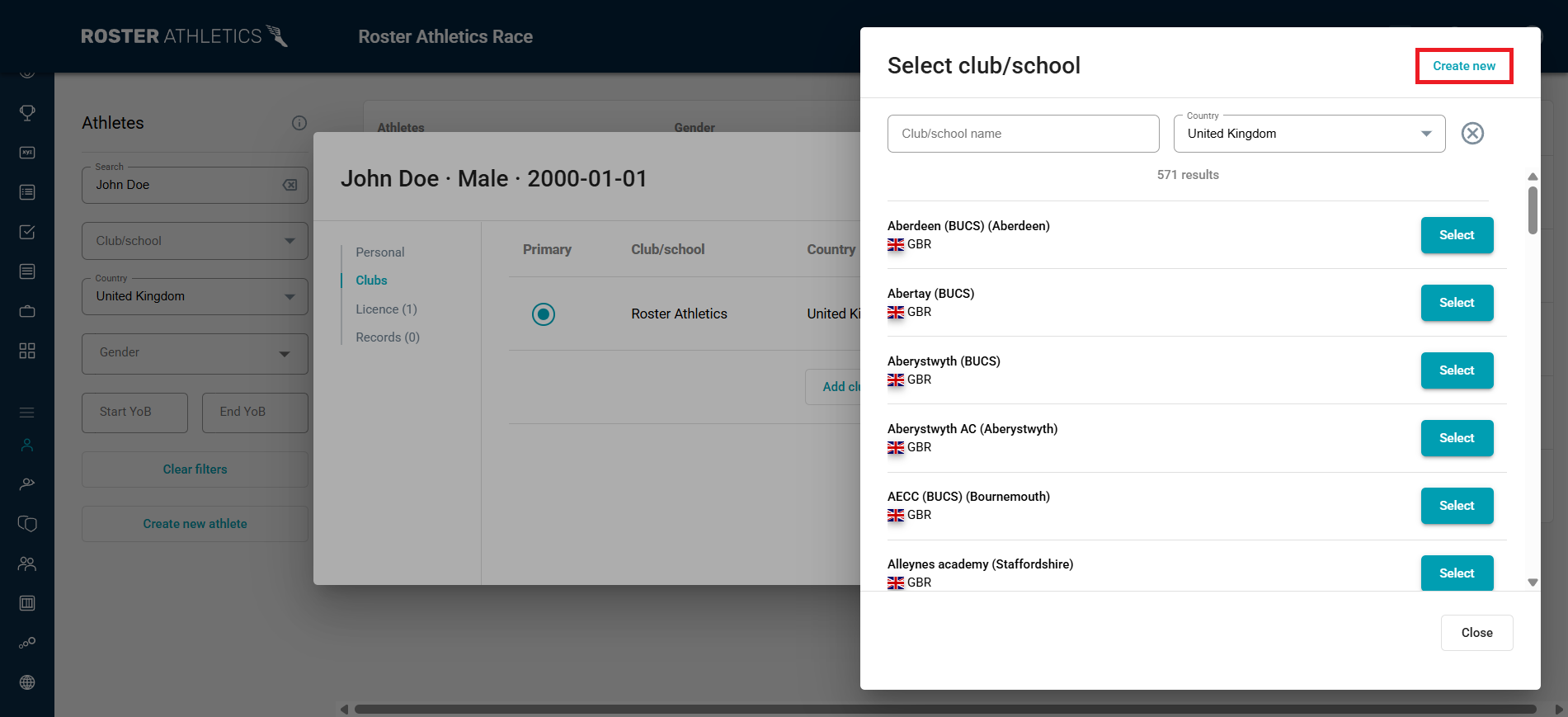
To add a new club or school from OVERVIEW → Clubs/schools in the left-hand side menu, click Create new club/school.
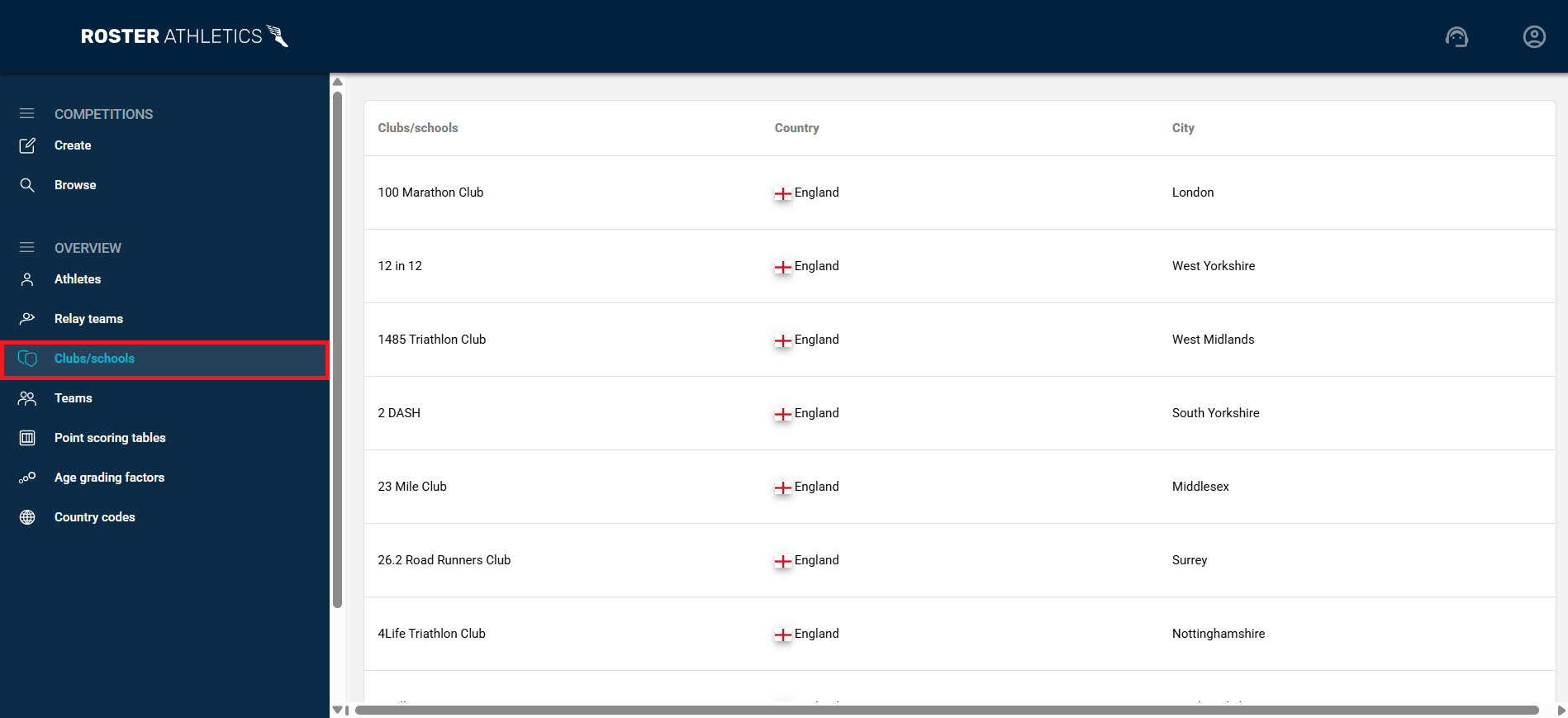
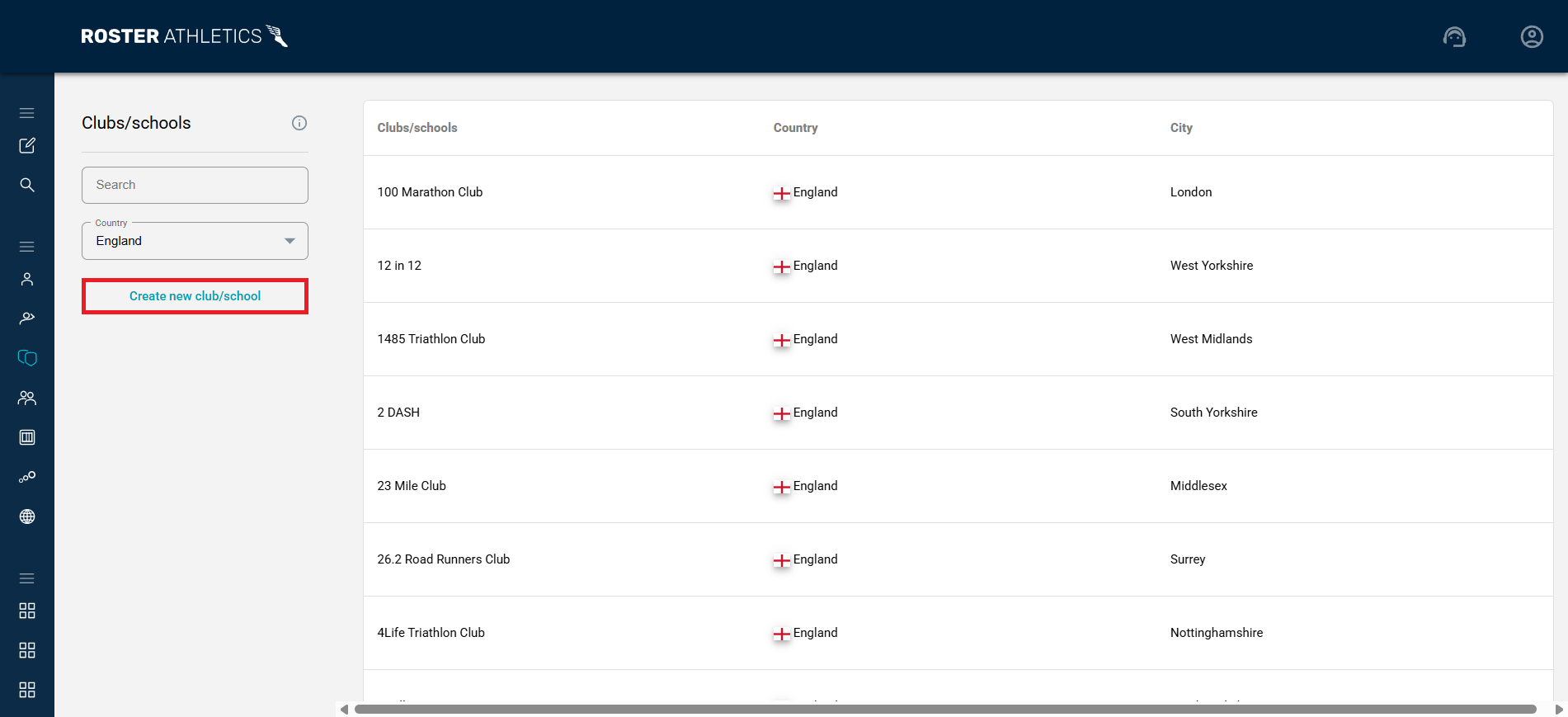
Step 2: Entering data
The Create new club/school window will open.
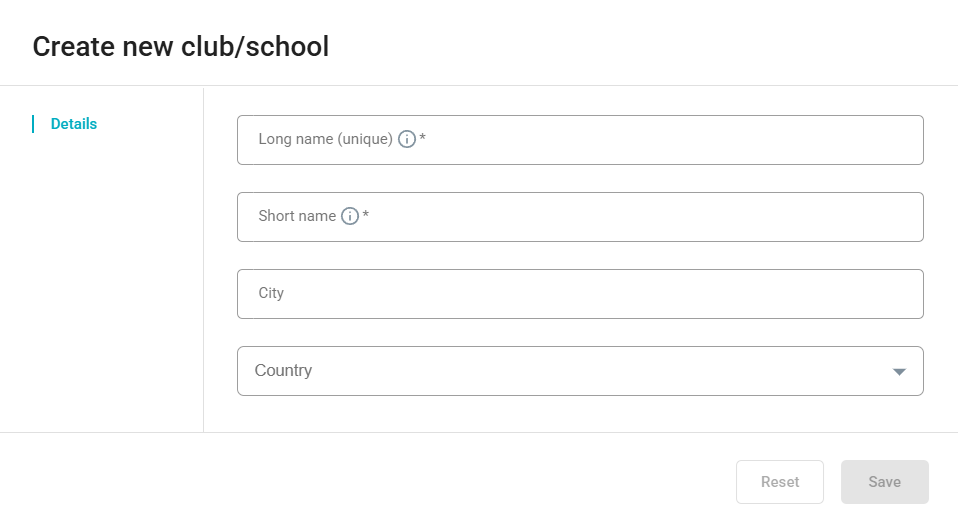
To add a new club or school, you must enter or select the following mandatory fields:
- Long name (must be unique)
- Short name
- Country
You can also add the City and Region (if relevant) where the club or school is located.
Step 3: Saving
After adding all the data, click the Save button.
Step 4: Editing
If you have added a new club or school correctly, you will see a menu containing links to Details, Athletes, Relay teams, and Teams. The Permissions button will also appear at the bottom of the page.
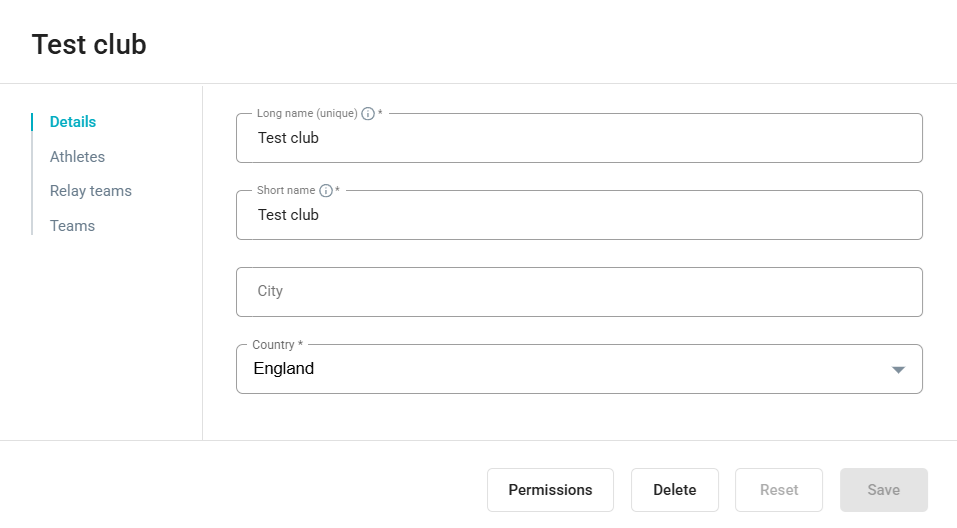
Athletes, Relay teams, and Teams
Under Athletes, Relay teams, and Teams, you can view the list of athletes, relays, and teams assigned to the club or school.
Permissions
After creating the club or school, you can manage access permissions. By clicking the Permissions button, you can add users who will have permission to read, edit, or delete data for this club or school. For more information on adding permissions to a new user, see the Permission to edit club/school guide.