
This is a quick, step-by-step guide to setting up a registration account as a coach or club manager. You only need to add your athletes once. After that, you can register them for all future competitions.
STEP 1
Go to https://meets.rosterathletics.com.
STEP 2
To create your profile on Roster Athletics, click Log in → Sign up in the top right corner.

STEP 3
Follow the on-screen instructions and enter all required information.
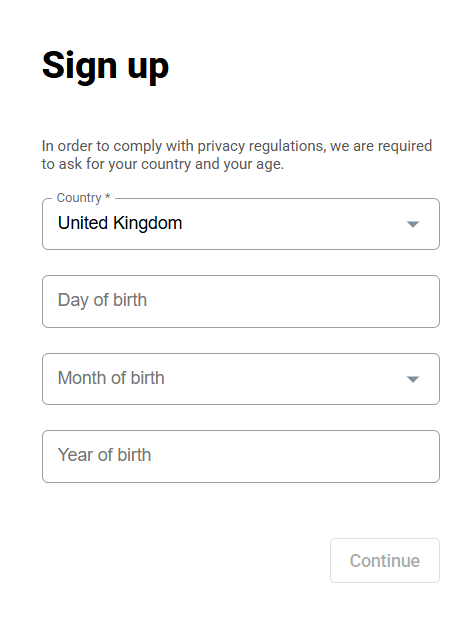
If you also compete, you can create your own athlete profile during account setup.
STEP 4
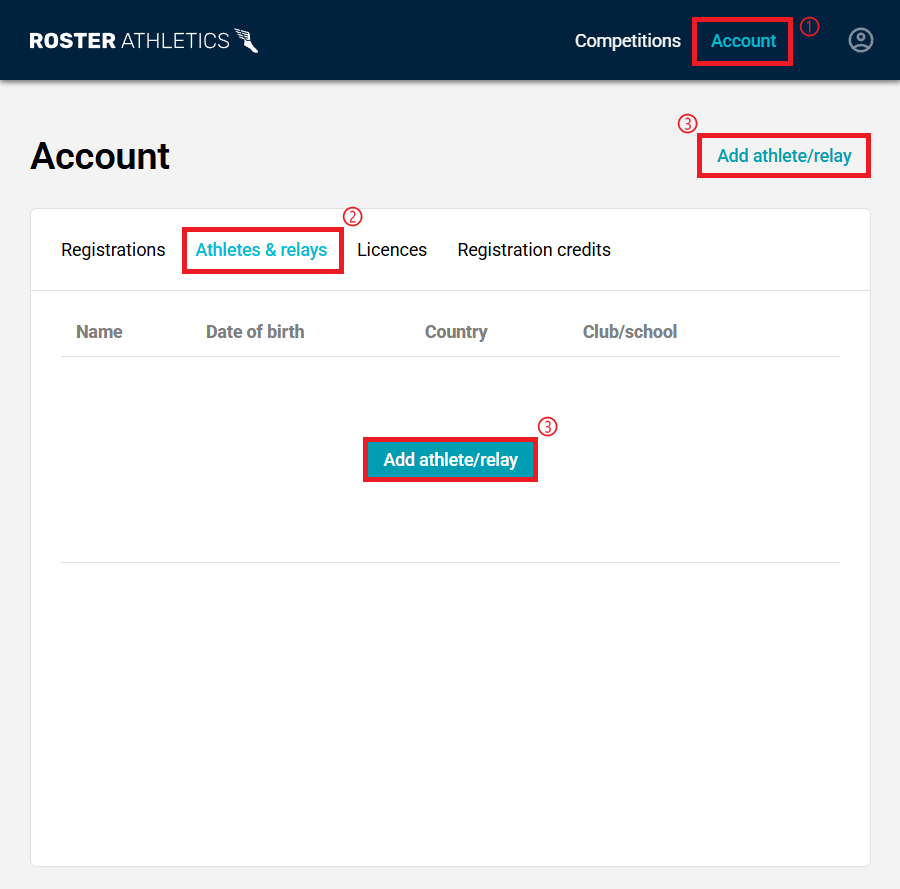
Click Add athlete/relay under the Account tab.
STEP 5
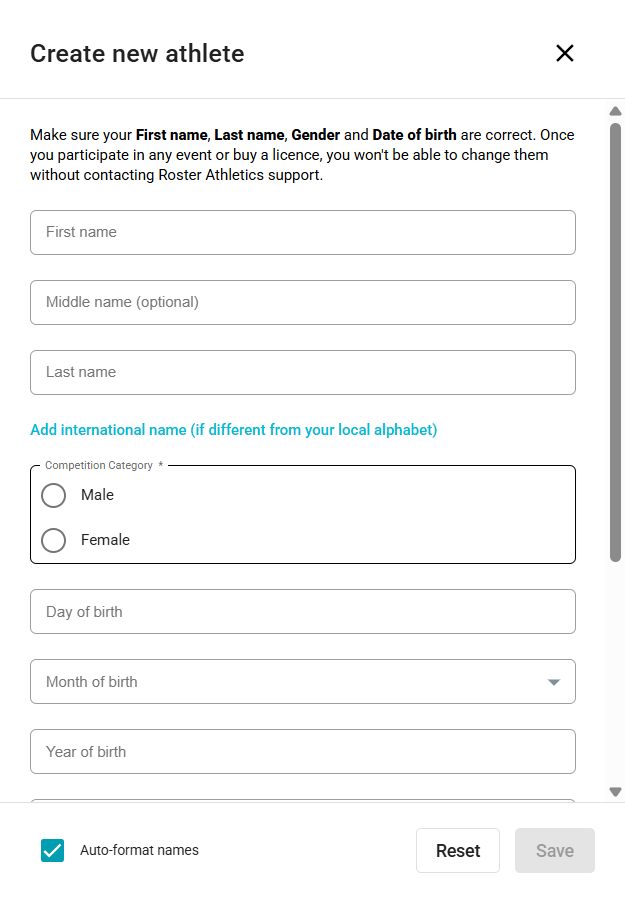
Enter the athlete's details accurately. The athlete's middle name is not required. Once you have entered all required inputs, press the Save button.
To assign a club or school, click Add club/school. If the athlete is not affiliated with any club or school, select Unattached.
For further instructions on setting up your account, please consult this user guide: Participants: Creating and managing your account.
STEP 6
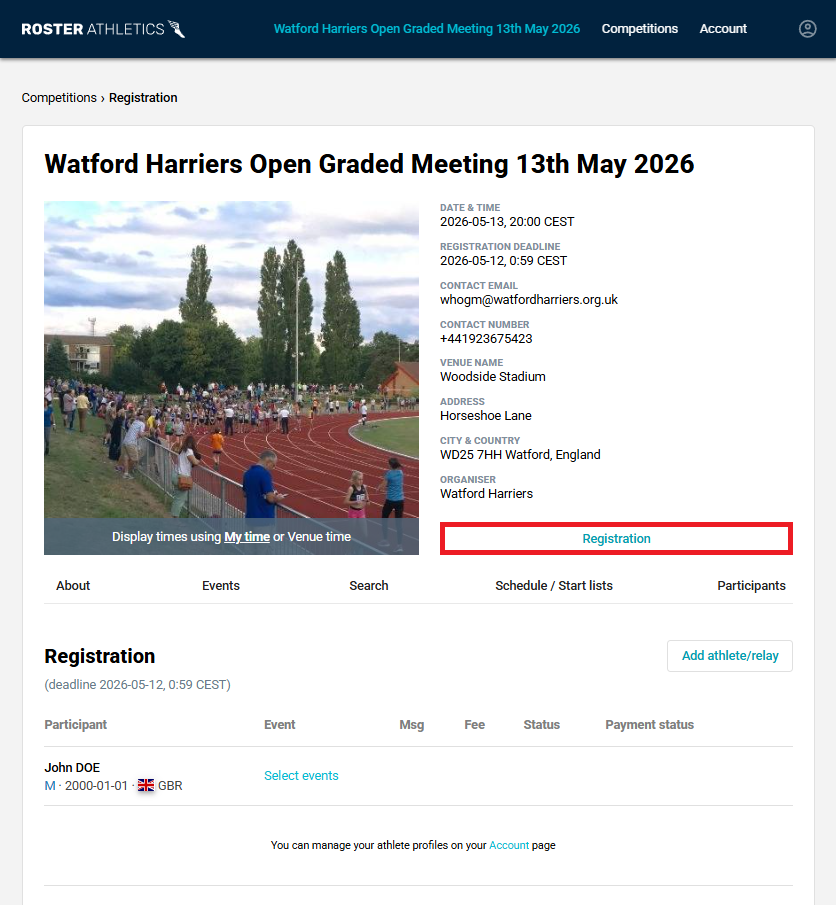
Click Competitions in the top menu to search for your competition. Once you have found the correct competition, click Registration.
STEP 7
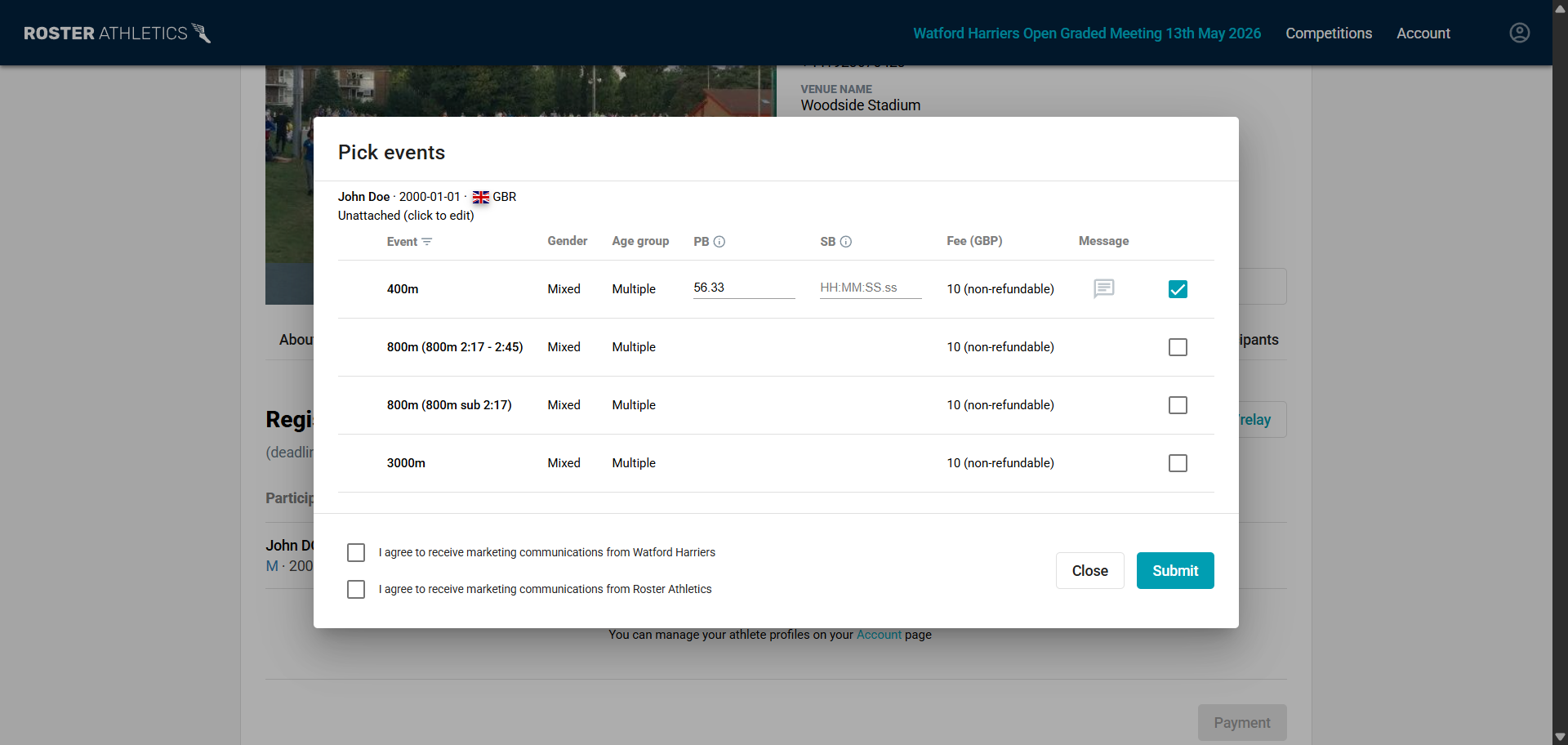
Select the athlete you wish to register, choose all relevant events, and click Submit to complete the registration.
STEP 8
Repeat Step 7 for each athlete you wish to register.
For more information on how to sign up, register, or resign, please refer to this user guide: Participants: How to sign up and register.