
A competition licence is your governing body's permission to hold a competition. In Roster Athletics you apply online, the governing body reviews and approves the application, and after the event you report on the competition and pay the licence fee.
The questions on each form, the competition types and the prices are set by your governing body, so this guide describes the screens and steps rather than individual questions.
The guide is divided into the following sections:
- Before you start
- Start an application
- Fill in the application
- Submit for review
- If the application is returned
- When the licence is approved
- After the competition: report and pay
- Questions and troubleshooting
Before you start
- Role. You need the Competition licence applicant role in the organisation holding the competition. See more in the Organiser roles guide.
- Organisation. Make sure you are acting for that organisation. Switch from the account icon at the top right. If the licence menu item is missing after switching, log out and back in.
- Where to find it. Everything happens in the competition's own menu, under Competition licence.
- Overdue forms. If a post-competition form from an earlier competition is overdue, you cannot submit a new application until you complete it.
1. Start an application
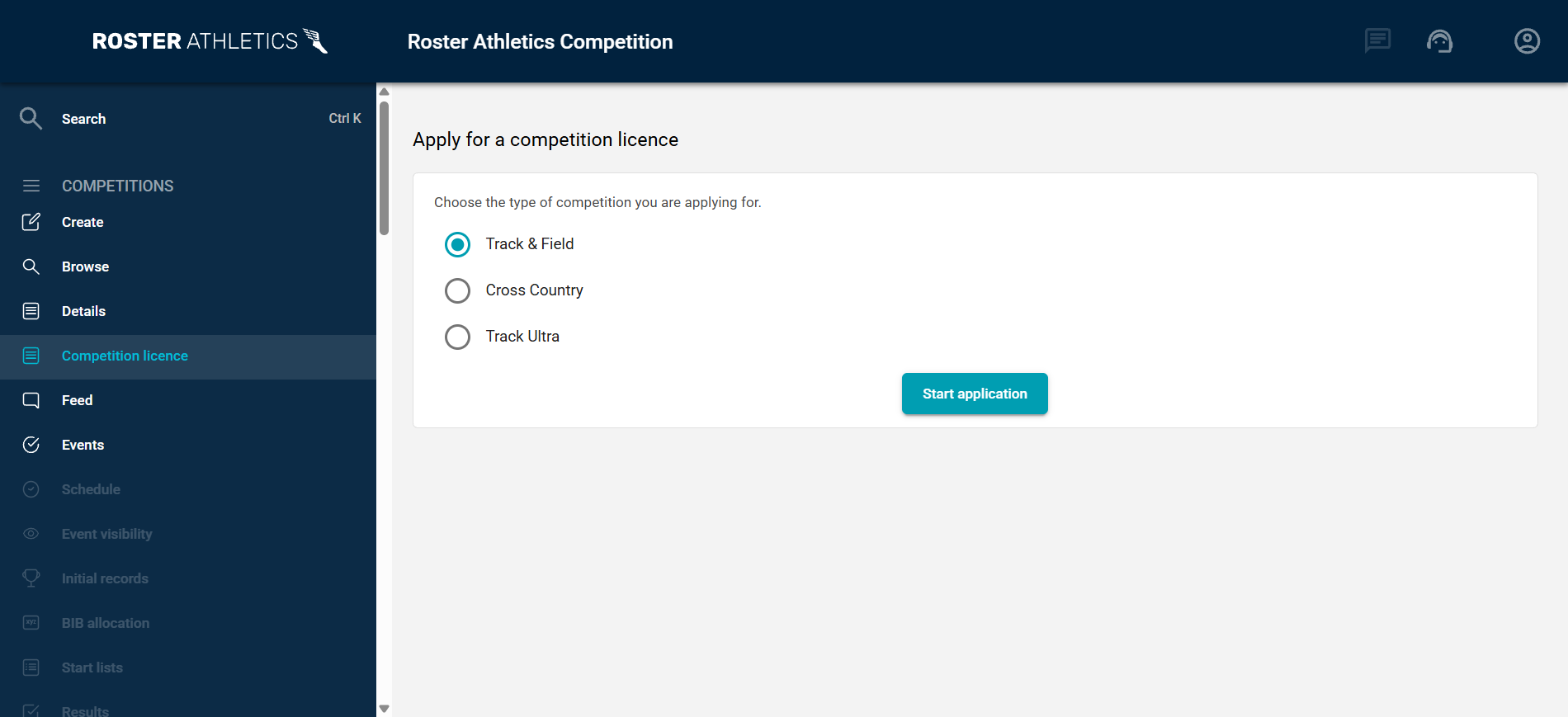
- Create and save your competition as usual. Roster asks "Apply for a competition licence for this competition?" Choose Apply now, or open Competition licence from the competition's menu later.
- Choose the type of competition you are applying for. The types listed are the ones your governing body offers.
- Select Start application. A new application opens in Draft.
2. Fill in the application
The form is split into sections, listed on the left. Select a section name to jump to it.
- Header. The top right shows the competition type, the status and whether your organisation is affiliated with the governing body. Affiliation is checked automatically a few seconds after the page opens.
- Required fields are marked with an asterisk. The counter under the section list, for example "8 fields still need attention", tells you how many are still missing.
- Fields filled for you. Some answers, such as the event name, dates and your organisation's details, are taken from the competition and your profile.
- Officials. Where the form asks for officials, enter each person's registration number. Roster checks it against the governing body's register and shows a tick or a cross with the date of the check.
- Files. Upload any documents a question asks for.
- Further competitions. One application can cover several competitions. Add another competition held in Roster from the list, or one run on another platform by typing its name and dates, then select Add. Each covered competition gets its own post-competition form later.
- Saving. Your answers are kept as a draft until you submit. Discard application deletes the draft.
3. Submit for review
When the counter shows nothing left, select Validate & submit. Roster checks the form and points you to anything still missing. Once submitted, the status changes to Waiting for review and the reviewers are notified by email.
4. If the application is returned
The governing body may return the application with one or more sections rejected. You receive an email, and the status changes to Returned to the organiser.
- Open Competition licence in the competition's menu.
- Each rejected section shows the reviewer's note explaining what to change. Accepted sections stay as they were.
- Make the changes and select Validate & submit again. The reviewers see which sections you changed.
An application can be returned and resubmitted as many times as needed.
5. When the licence is approved
You receive an email, and the application becomes read-only. The header shows Approved and the licence number. The prices you will be charged are fixed at this point. Every competition the licence covers shows a LICENSED badge on its public page and in the public competition list.
6. After the competition: report and pay
The post-competition forms are listed at the bottom of the approved application, one for each covered competition. A form opens once its competition has taken place (its competition status must be set to Finished) and must be completed by the date shown, for example "Open, complete by 2026-11-20". You receive reminders by email.
- Open the form from the approved application.
- Answer the questions. Competition details such as the licence number, event name, venue and date are filled in for you.
- Where the form asks for athlete numbers, Roster shows its own counts under each field. Select Use Roster's counts to copy them, or type your own.
- The Licence fee section shows an estimate, calculated from your answers and the approved prices.
- Select Save draft to finish later, or Validate & submit when done.
- After submitting, the form is Awaiting payment. Select Pay now to pay. To correct an answer before paying, select Amend: the form goes back to Draft.
Once paid, the form is Completed and read-only, with the fee you paid.
Questions and troubleshooting
The Competition licence menu item is missing. Check that you are acting for the right organisation (account icon, top right) and that you hold the licence role there. If you switched organisation, log out and back in.
I cannot submit a new application. One of your post-competition forms is probably overdue. The application page names it. Complete and pay it, then submit.
Who receives the emails? Decisions and post-competition reminders go to the person who submitted the application.
Can the price change after approval? No. The prices are fixed when the licence is approved. The post-competition fee is calculated from those prices and the numbers you report.
Can I fix a post-competition form after submitting it? Yes, until it is paid. Select Amend to turn it back into a draft.